
When someone on your team submits their timesheet, it comes to you for approval. Approved hours are what payroll exports and overtime are based on, so check them before you approve. Timesheets are available on the Professional plan and up.
Open Team Timesheets
Open the menu under your name and choose Timesheet Approvals. Admins also find it under Scheduling › Timesheets in the admin menu.
The page has three tabs:
| Tab | What it lists |
|---|---|
| Pending Approval | Submitted timesheets waiting for a decision. The tab shows how many. |
| Open / Draft | Timesheets your team is still filling in. |
| History | Timesheets that were approved or rejected. |
Use All Employees at the top to show one person only. You see your direct reports; admins see everyone.
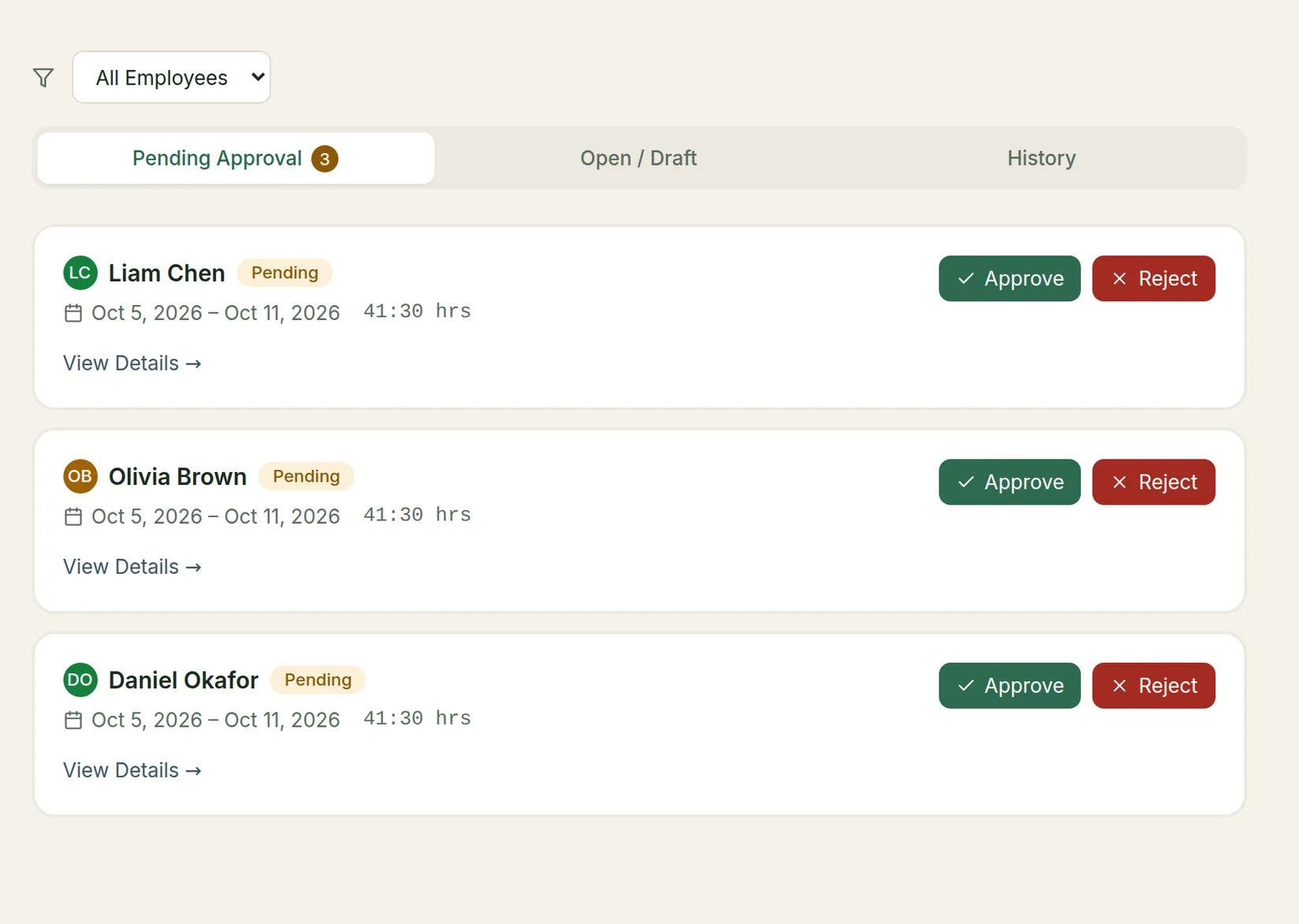
Each timesheet shows the person, its status, the period and the total hours.
Review a timesheet
Choose View Details → to see every entry before you decide.
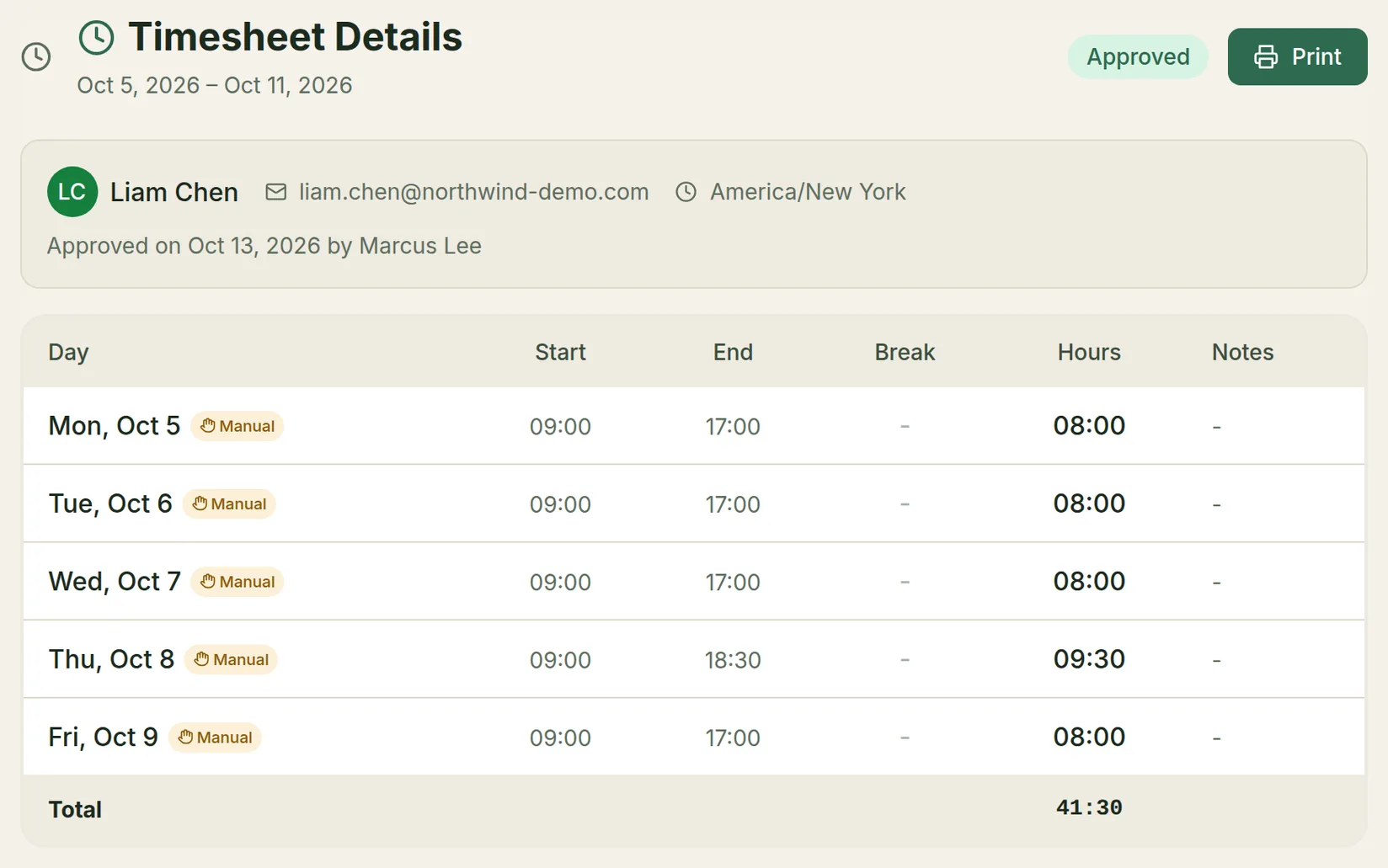
The details page shows the employee, the period, the time zone the times are in, and each day's Start, End, Break, Hours and Notes. Entries the employee typed in are labelled Manual. For clocked entries you can open the clock-in and clock-out location.
Look out for flags on entries. They mean something needs your attention:
| Flag | What it means |
|---|---|
| Long shift | Recorded exactly as the employee clocked out, but unusually long. Nothing was changed. |
| Unconfirmed | The employee never clocked out. The end time is a suggestion. |
| Hours stale | The employee clocked out after the timesheet was submitted. The end time is real, but the hours shown were not updated. |
| Synced late | The clock tap was saved offline on the phone and sent later. The time is the time of the tap. |
| Offline conflict | A tap saved offline clashed with what was already recorded and was kept as a zero-hour entry. |
| Hours not recorded | The 0 hours shown are a gap, not a duration. The hours need setting before you approve. |
| No location | The device couldn't find a location for a clock tap. No time was lost. |
Print prints the timesheet (or saves it as a PDF), with lines for the employee's and manager's signatures.
Approve or reject
You can decide from the Pending Approval list or at the bottom of the details page.
- Approve approves the timesheet. The employee gets a Timesheet Approved notification and the timesheet moves to History.
- Reject asks for a Reason for rejection (optional). Write what needs fixing, for example "Thursday's end time looks wrong". The employee gets a Timesheet Rejected notification with your reason, and the timesheet opens for editing again.
Choosing Cancel in the reason box still rejects the timesheet. It is only the reason that is optional. If you didn't mean to reject it, ask the employee to resubmit it.
What the employee sees
- While the timesheet waits for you, it shows Pending and Awaiting Approval, and they can't change it.
- When you approve it, it shows Approved and the date.
- When you reject it, it shows Rejected and Changes Requested. They correct their entries and choose Resubmit for Approval, and it comes back to your Pending Approval tab.
If your company banks overtime as time off, approving a timesheet is what adds the overtime to the employee's time bank. See Overtime & Time Bank.
When you're away
Timesheets follow the same approval chain as leave. If you are away or have left, they go to the next person up, or to your company's fallback approver. See Delegate Your Approvals.