
You request leave from your dashboard. This guide covers sending a request, what happens next, changing or cancelling it, and how to read your balances.
Send a request
Open Request Time Off
On your dashboard, choose Request Time Off under Quick Actions.
Choose the leave type
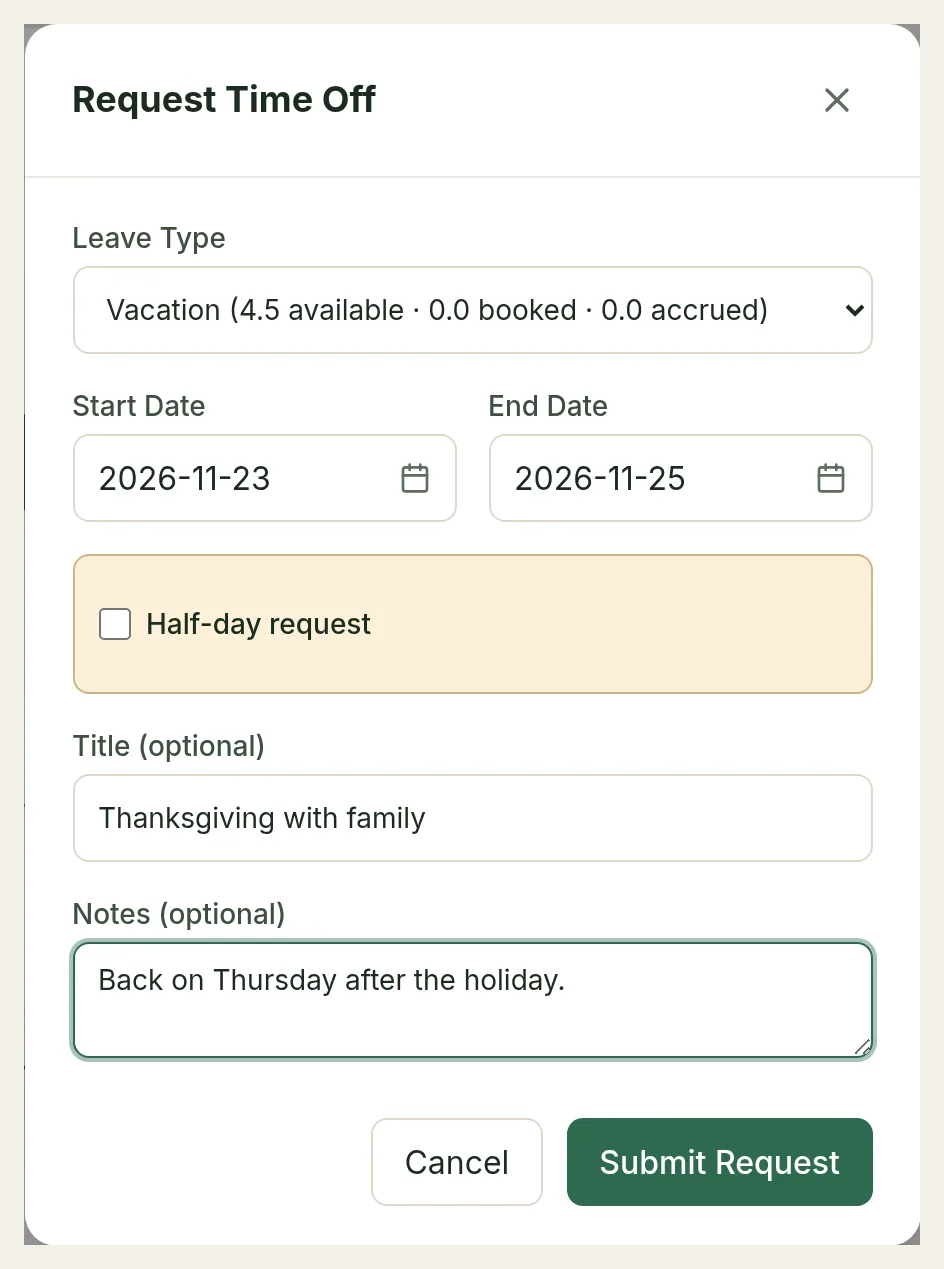
Pick a Leave Type. Each type shows your balance next to its name, for example Vacation (4.5 available · 0.0 booked · 0.0 accrued), so you can see what you have before you book. You only see the leave types your company assigned to you.
Choose your dates
Pick a Start Date and an End Date. For one day, use the same date for both. Days you already have leave booked are greyed out.
Only your working days are charged. Weekends, days you don't work and company holidays (if your leave type excludes them) are not taken from your balance.
Part of a day (optional)
For half a day, tick Half-day request and choose Morning (first half of day) or Afternoon (second half of day). The end date is set to the start date. Where each half begins and ends is set by your company.
If your leave type allows it, you can also tick Hourly request. Enter the time you're Starting at and how many Hours you need, up to your full working day. Your balance is charged the matching part of a day.
Add details (optional)
Add a Title (optional), such as "Family vacation", and Notes (optional) for your approver.
Under Attach a file (optional) you can add a document such as a sick note: a PDF or a photo (JPEG, PNG, WebP or HEIC), up to 10 MB. On a phone you can take the photo directly.
Submit
Choose Submit Request.
Booking over a scheduled shift. If the dates overlap shifts you are rostered for, the dialog says This overlaps with N scheduled shifts before you submit. You can still send the request, and your manager is told about the conflict.
What happens next
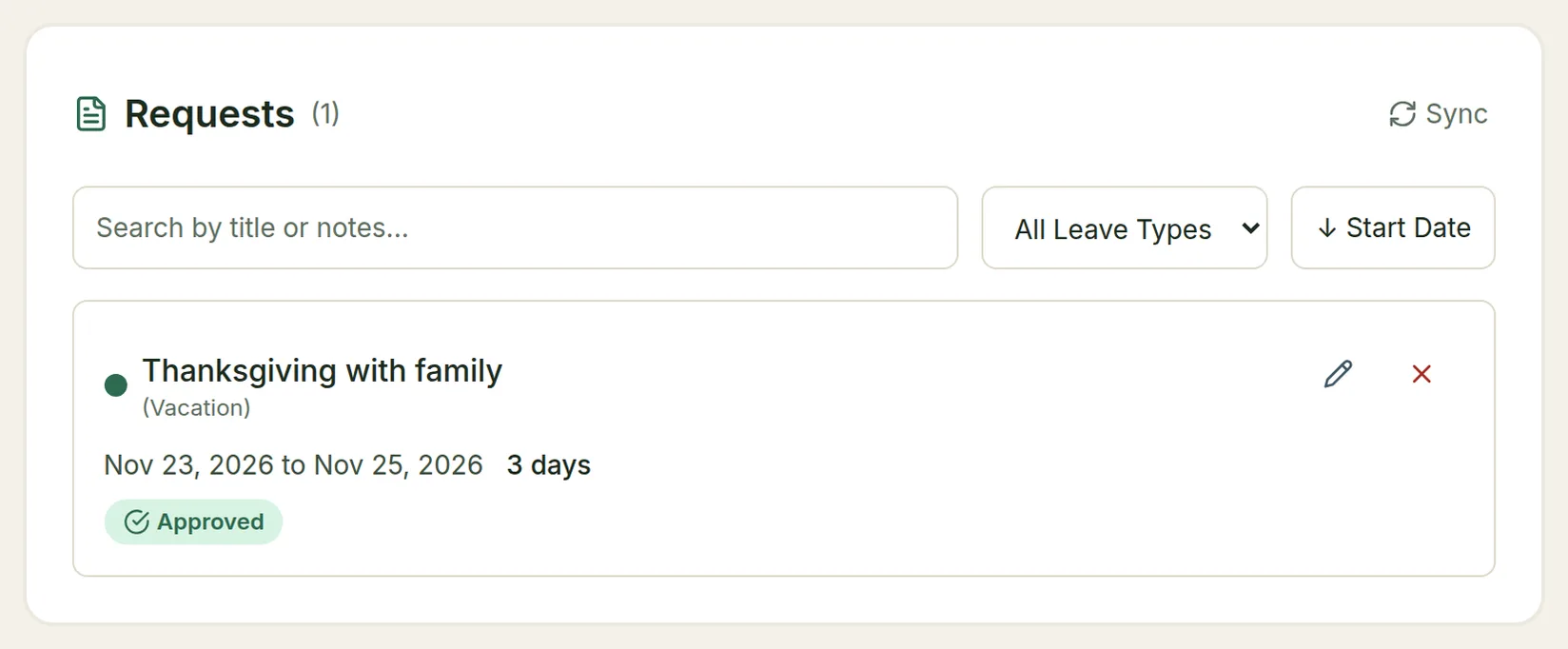
Your request appears in the Requests list on your dashboard. While it waits, it shows Waiting on and the name of the person who decides it, usually your manager.
- That person is notified in TimeLeaf and by email, and in Teams, Slack or Google Chat if your company uses one.
- Some companies need two or more people to approve certain leave. Your request stays Pending until the last of them approves it. You get a notice each time one of them approves.
- When it is decided, you get a notification and an email.
- Some leave types don't need approval. Those are approved as soon as you submit.
Request statuses
| Status | What it means |
|---|---|
| Pending | Waiting for a decision. The days are held aside from your balance. |
| Approved | Your leave is booked. |
| Denied | Your request was turned down. The days go back to your balance. |
| Cancelled | The request was withdrawn. The days go back to your balance. |
| Draft | Saved but never sent. |
| Date passed, not decided | Nobody decided it before the leave started. Your approver can still decide it. |
Change a request
Choose the pencil icon on the request.
- Title and Notes can always be changed, even after the leave.
- Dates can be changed until the leave starts. If you move the dates, the request goes back for approval, even if it was already approved. The dialog warns you: Changing dates will require a new approval from your manager.
- After the leave starts, the dates are locked.
Cancel a request
Choose the × icon on the request, add a reason if you like, and choose Cancel Request. The days go back to your balance, and anyone who was asked to approve it is told.
You can cancel a pending or approved request until the day it starts. Once your leave has started, ask your manager or an admin to cancel it.
Messages you might see
| Message | Why |
|---|---|
| This leave needs N days' notice. | Your company requires notice for this leave type and blocks short-notice requests. Choose a later start date or talk to your manager. Sick leave never needs notice. |
| This time period falls within a blackout: … | Your company doesn't allow time off on those dates. |
| This request is N day(s) more than your projected balance covers. | You don't have enough balance, counting what you'll have earned by then. Shorten the request or talk to your manager. |
| There is already leave booked on … | You already have a request for that day. Change or cancel it first. |
| You qualify for this leave type from … | You're still in the waiting period for this leave type. |
| That day is not one of your working days. | A half-day or hourly request has to be on a day you work. |
Some companies let short-notice requests through instead of blocking them. The request is then sent as usual, and your approver sees that it was short notice.
Your balances explained
Each leave type on your dashboard shows what you have Available. Open What do Available, Booked, Accrued and Pending mean? under the cards for this explanation:
- Accrued is what you have earned so far this leave year, plus any days carried over from last year. It keeps growing as the year goes on.
- Booked is leave you have already committed anywhere in this leave year, including trips later in the year.
- Pending is leave you have asked for but nobody has decided on yet. Those days are held aside as soon as you submit. If the request is turned down or you cancel it, they come straight back.
- Available is what you have spare right now: Accrued, minus Booked, minus Pending.
Booking ahead often pushes Available down to 0 well before you take the leave. That is normal, not an error: your booked days come out of leave you haven't finished earning yet, and Available recovers as Accrued catches up.
A card may also show days that expire on a date (carried-over leave you must use by then), how much is pending, or More booked than this year covers. Unpaid leave shows By request instead of a number, because it has no balance.
See who else is off
Choose Who's off under Quick Actions. The calendar shows approved time off for the people you can see, with a list for the month below it. Your manager or admin decides who that is, and whether you see the type of leave or just that someone is out.
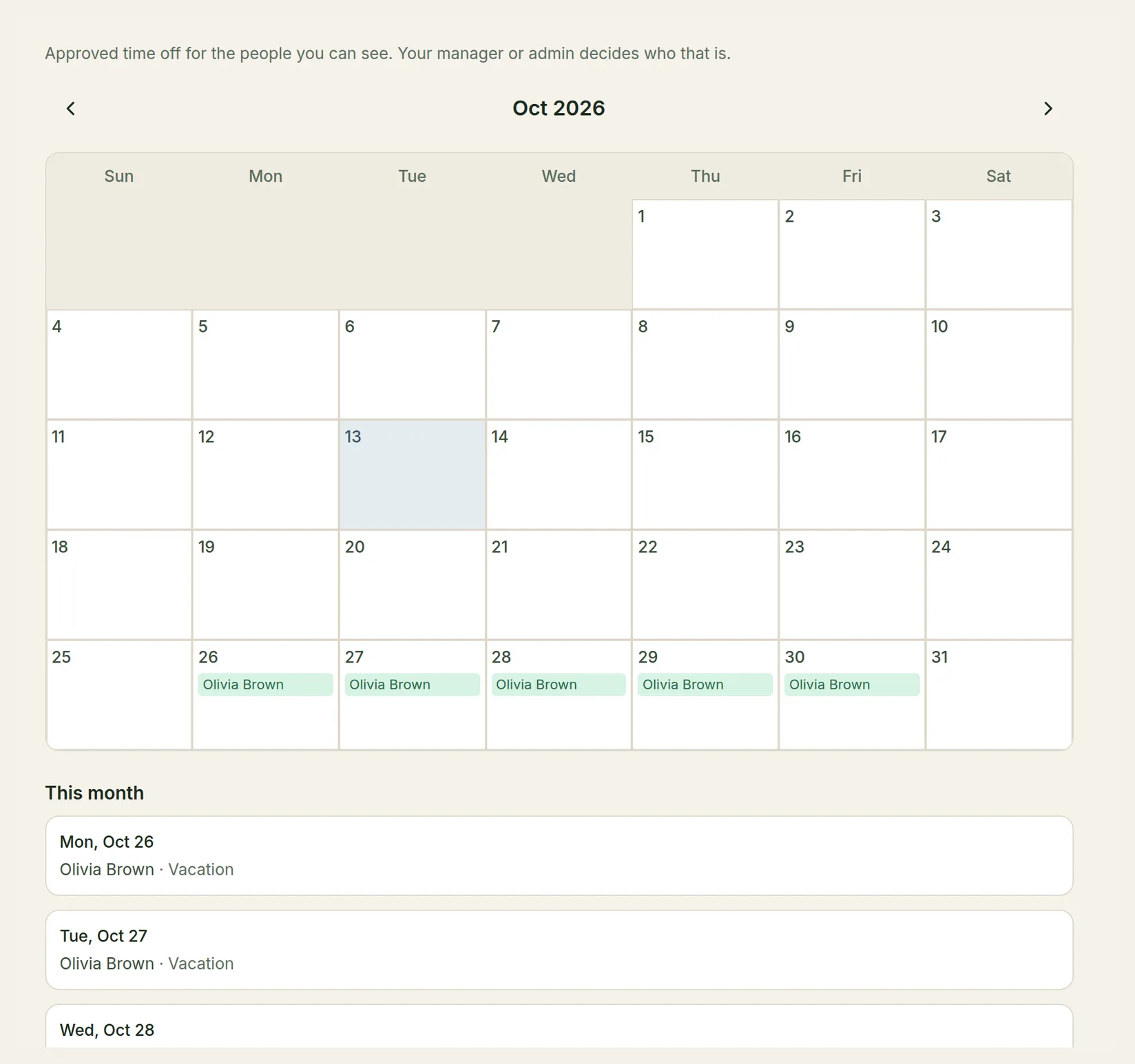
View calendar under Quick Actions shows your own time off for the next two weeks.