
Going on holiday? Name someone to decide your team's leave requests while you're away, so nobody waits for you to come back. Delegation is available on every plan.
How the dates work
The dates you choose are about when the leave starts, not about when you're away. A request is handed to your delegate when the employee's leave starts between your two dates.
Example. You're away from 20 to 30 November and set Leave starting from 20 November Up to 30 November.
- Liam asks for 24–25 November. It starts inside your dates, so it goes to your delegate.
- Olivia asks for 15–17 December while you're away. It starts outside your dates, so it still waits for you.
- A request for 22 November that was already waiting for you before you set this up moves to your delegate too.
If you want your delegate to handle requests for the weeks after you're back as well, set Up to later.
Timesheets work by today's date instead. While today is inside your dates, your delegate decides every timesheet waiting for your approval, whenever it was submitted. Once your dates have passed, timesheets still waiting come back to you.
Set up a delegation
Open Delegate my approvals
Open the menu under your name and choose Delegate my approvals.
Choose your delegate
Under Delegate to, choose a person. Anyone in your company who can still sign in can be chosen. People who have left, or whose access has ended, aren't listed.
Choose the dates
Set Leave starting from and Up to, using the rule above. The start can't be in the past.
Delegate
Choose Delegate. Your delegate is told in TimeLeaf and by email. The requests then appear in their To decide list, their notification bell and their email.
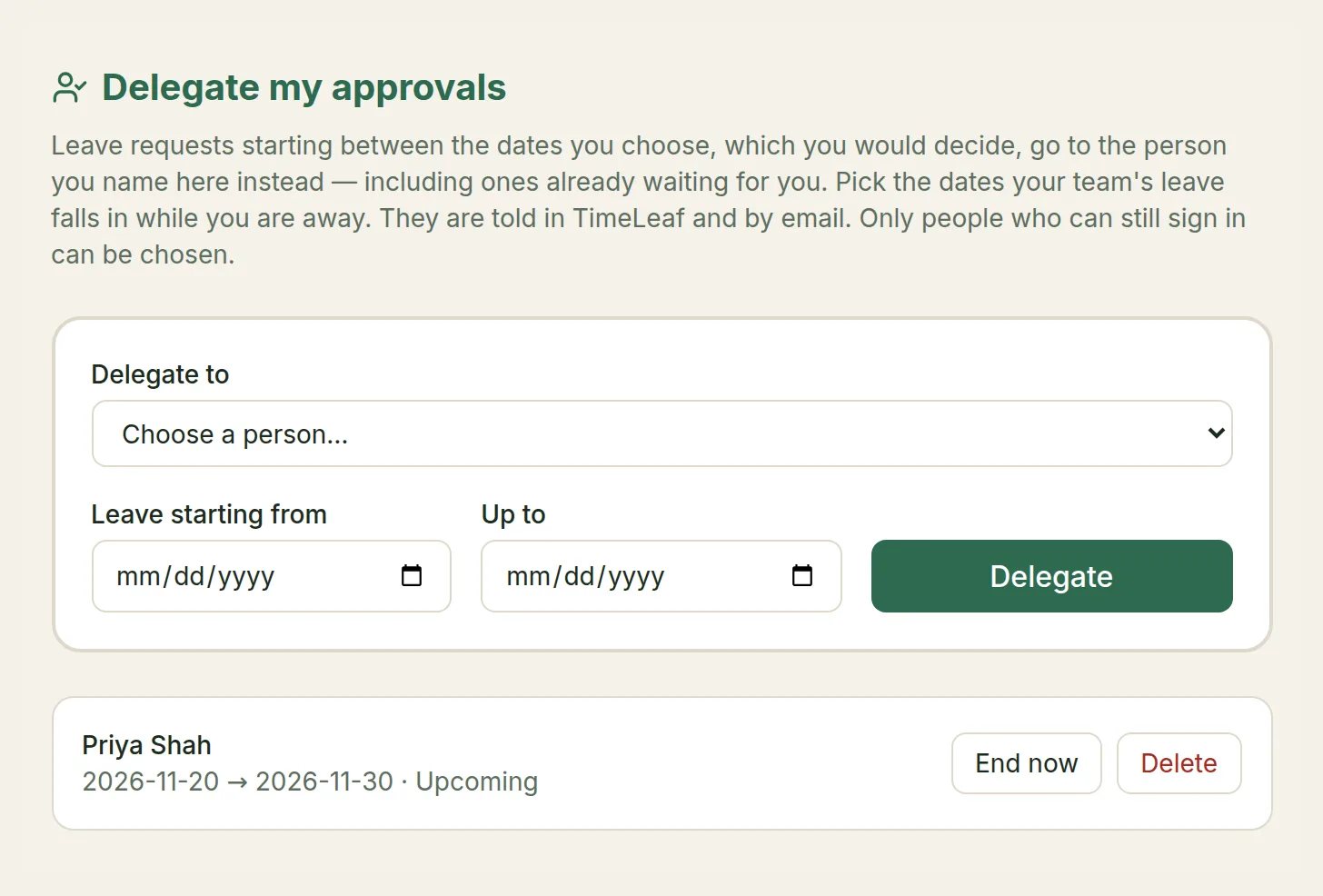
You can't have two delegations whose dates overlap. To change your delegate, end the current one and create a new one.
End or delete a delegation
Your delegations are listed under the form, each marked Upcoming, In effect, Finished or Ended.
- End now stops a delegation that is upcoming or in effect. New requests come to you again. The delegation stays in the list as Ended.
- Delete removes it from the list.
For admins: delegations and standing escalation
Admins can manage delegations for any manager under Time off › Approval Delegation.
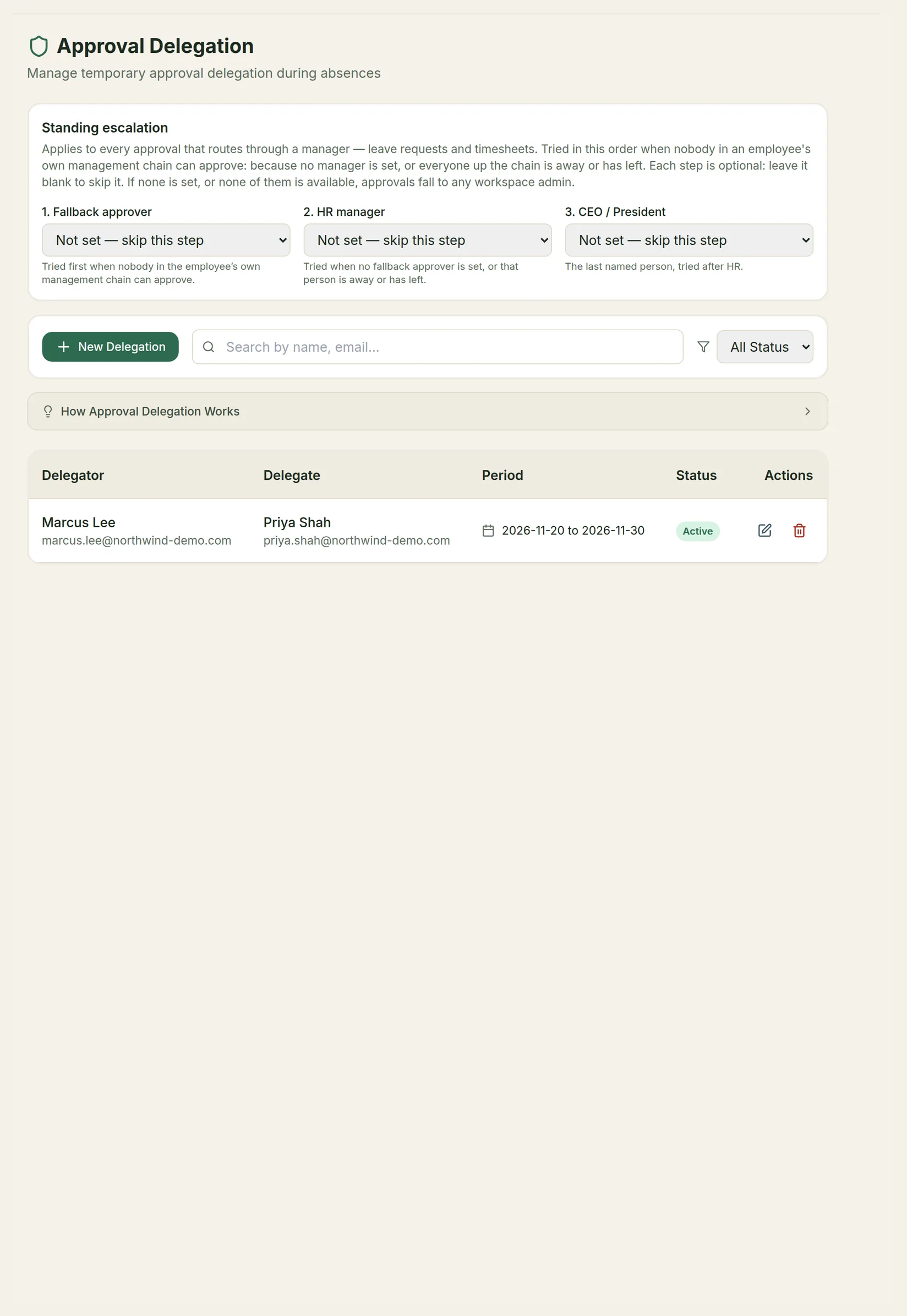
Create a delegation for someone
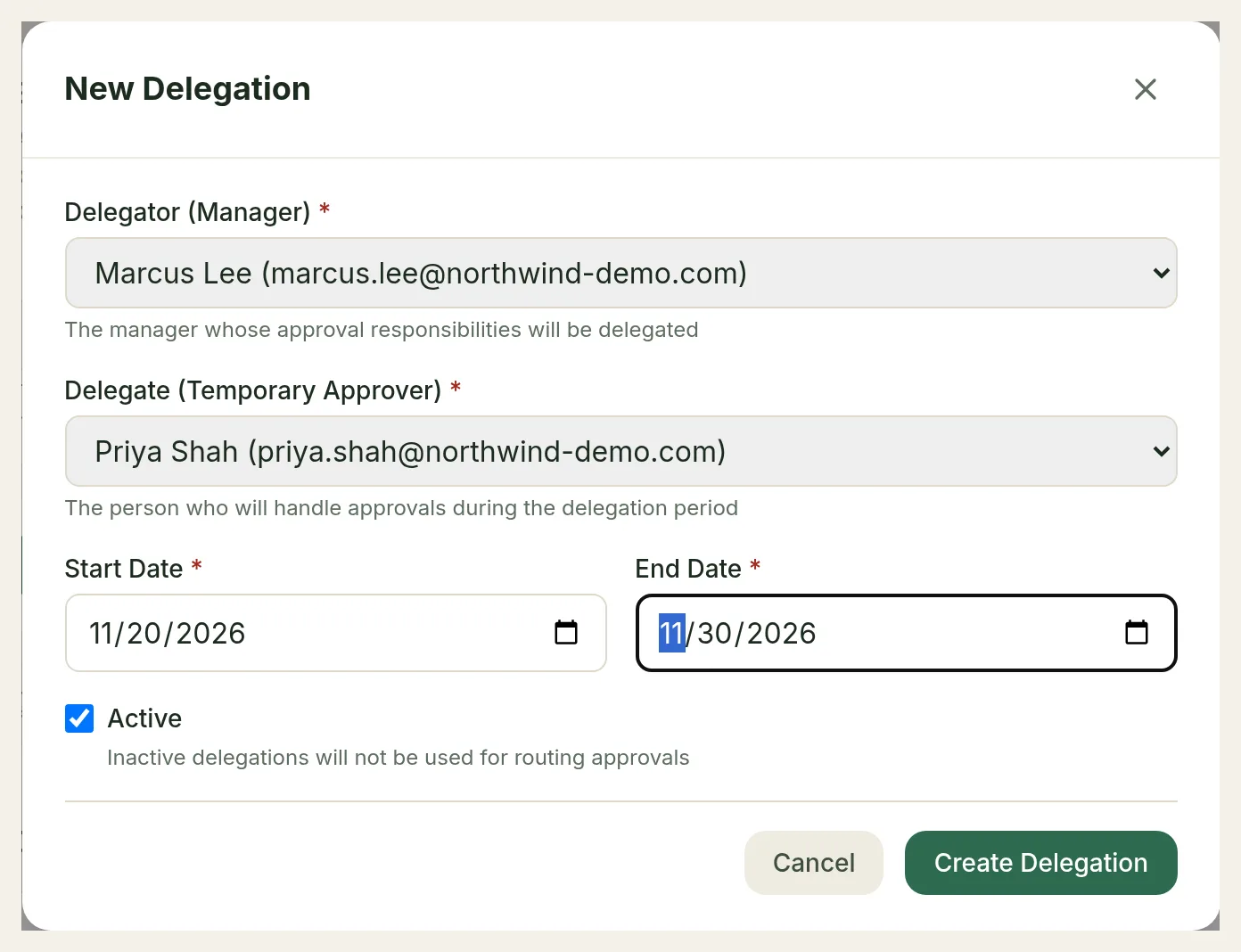
Choose New Delegation, then pick the Delegator (Manager) whose approvals are handed over, the Delegate (Temporary Approver), and a Start Date and End Date. As on the manager's own page, the dates are matched against the day the leave starts. Leave Active ticked; an inactive delegation isn't used. Choose Create Delegation.
Use the edit and delete icons in the list to change or remove a delegation. The search box and All Status filter help you find one.
Standing escalation
Standing escalation decides who approves when nobody in an employee's own management chain can: because the employee has no manager, or everyone up the chain is away or has left. It applies to both leave requests and timesheets. TimeLeaf tries, in order:
- Fallback approver: tried first.
- HR manager: tried when no fallback approver is set, or that person is away or has left.
- CEO / President: the last named person, tried after HR.
Each step is optional. Leave it on Not set — skip this step to skip it. If none is set, or none of them is available, approvals go to any workspace admin. Changes save as soon as you pick someone.