
If your company schedules shifts in TimeLeaf (Professional plan and up), your manager builds the roster and you see your shifts on your dashboard. This guide covers what you see and what you can answer.
Your upcoming shifts
The Upcoming Shifts card on your dashboard lists your shifts from today through the next two weeks: the date, the hours and the shift's name (or Ad-hoc for a one-off shift). If there are more than five, the card shows how many more.
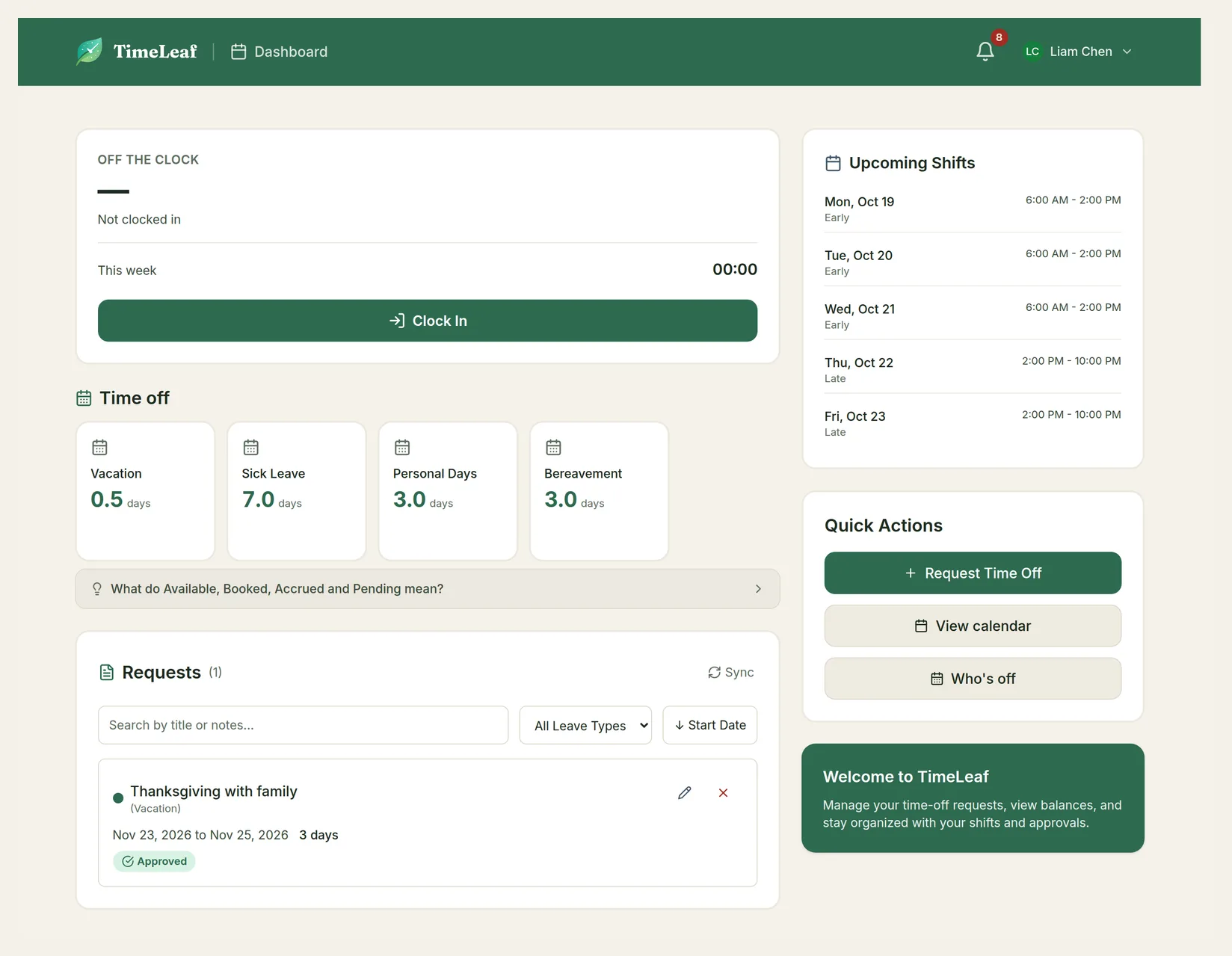
Hours are shown on your own clock. If a shift is at a site in another time zone, the card also shows the site's time, labelled with its zone.
If your shift has job-site stops, the card lists them with a Directions link that opens your phone's maps app. Your company may also show a Today's route card where you Check in and Check out at each stop. Your first check-in can start your paid day.
The card only appears when you have shifts coming up.
Shift notifications
TimeLeaf tells you in the app (the bell) and by email when:
- New shift: your manager assigns you a shift.
- Shift changed: your manager moves or retimes one of your shifts.
- Your schedule is ready: your manager publishes a roster with shifts for you.
- Route Changed: the stops on one of your shifts changed.
Emails come in your own language. You can turn emails off in Notification Settings (see Your First Sign-In).
Shift offers
When a shift needs covering, your manager can offer it out (Business plan and up, when your company uses Shift Automation). If you're qualified and available, you get a Shift Available notification and an email.
Open the offer
Choose the notification or the link in the email. It takes you to Shifts offered to you on your dashboard.
Accept or decline
Each offer shows the date, the hours and Respond by with the deadline. Choose Accept or Decline.
- Shift accepted. It is now on your schedule. The shift is yours and appears under Upcoming Shifts.
- That offer is no longer available. Someone else took it, the deadline passed, or it no longer fits your schedule.
Shift preferences
Some companies ask you which shifts you'd like before they build the roster (Business plan and up). When your manager opens a preference period, you get a Preference Deadline Approaching notification and email about a day before the deadline, with a link to the form.
Open the preference period
Choose the link in the notification. Your Preferences lists the open periods and how much time is left. Choose a period.
Rank your shifts for each day
Pick a day of the week. Under Available Shifts, add up to three shifts in order of preference: your first choice has the highest priority. Use the handle beside a choice to move it up or down, or Remove it.
Save
Repeat for each day you want to work, then choose Save Preferences.
Your preferences are one input. Your manager also considers qualifications, leave and working-time rules, and reviews the roster before publishing it.
Overtime opportunities
If your company broadcasts overtime (an add-on, Business plan and up), you get overtime offers by text message, email or chat app, depending on your Notification Settings. The link in the offer opens a page with the details, the pay note and Respond by. Choose Accept or Decline.
An accepted offer may show Accepted (awaiting resolution) when your company picks between several people who accepted, for example by seniority.
You can see every opportunity at https://yourcompany.timeleaf.io/overtime: Open opportunities, My Offers (with Respond Now on the ones still waiting for you) and History.
On-call
If your company uses on-call scheduling (an add-on), your dashboard shows an On-Call Schedule card:
- You're on call now or You're next on call, with the times.
- Request cover: choose a teammate and Send to ask them to cover for you. They see the request in On-Call Swap Requests and choose Accept or Decline.
- Team on-call this week: who is on call.
You may also be sent a link to give your availability for an on-call schedule. Tick the days you can't cover and choose Save availability.