
This guide takes you from the invitation email to a working account. It takes about five minutes.
Accept your invitation
Your company adds you to TimeLeaf, and you get an email titled You've been invited to your company on TimeLeaf. What it asks you to do depends on how your company set up your account.
Open the email and choose Set your password
Most invitations have a Set your password button. The link works once and expires after 7 days.
If your email shows a password instead, your admin chose one for you: sign in with it and change it later with Forgot password?. If it says to sign in with your company SSO, see Signing in with SSO below.
Choose a password
The Set Your Password page shows the email address you are setting a password for. Type a password of at least 8 characters, type it again to confirm, and choose Set Password.
Sign in
When you see Password Set!, choose Sign In and sign in with your email address and new password.
The link says "This link is invalid or has expired." The link was already used, or more than 7 days have passed. Choose Request a new password link, enter your work email, and use the new link from your inbox. You can also ask your admin to resend the invitation.
Signing in
Your company's TimeLeaf address looks like https://yourcompany.timeleaf.io. If you don't know it, go to timeleaf.io/login, enter your work email and choose Continue. TimeLeaf sends you to the right workspace.
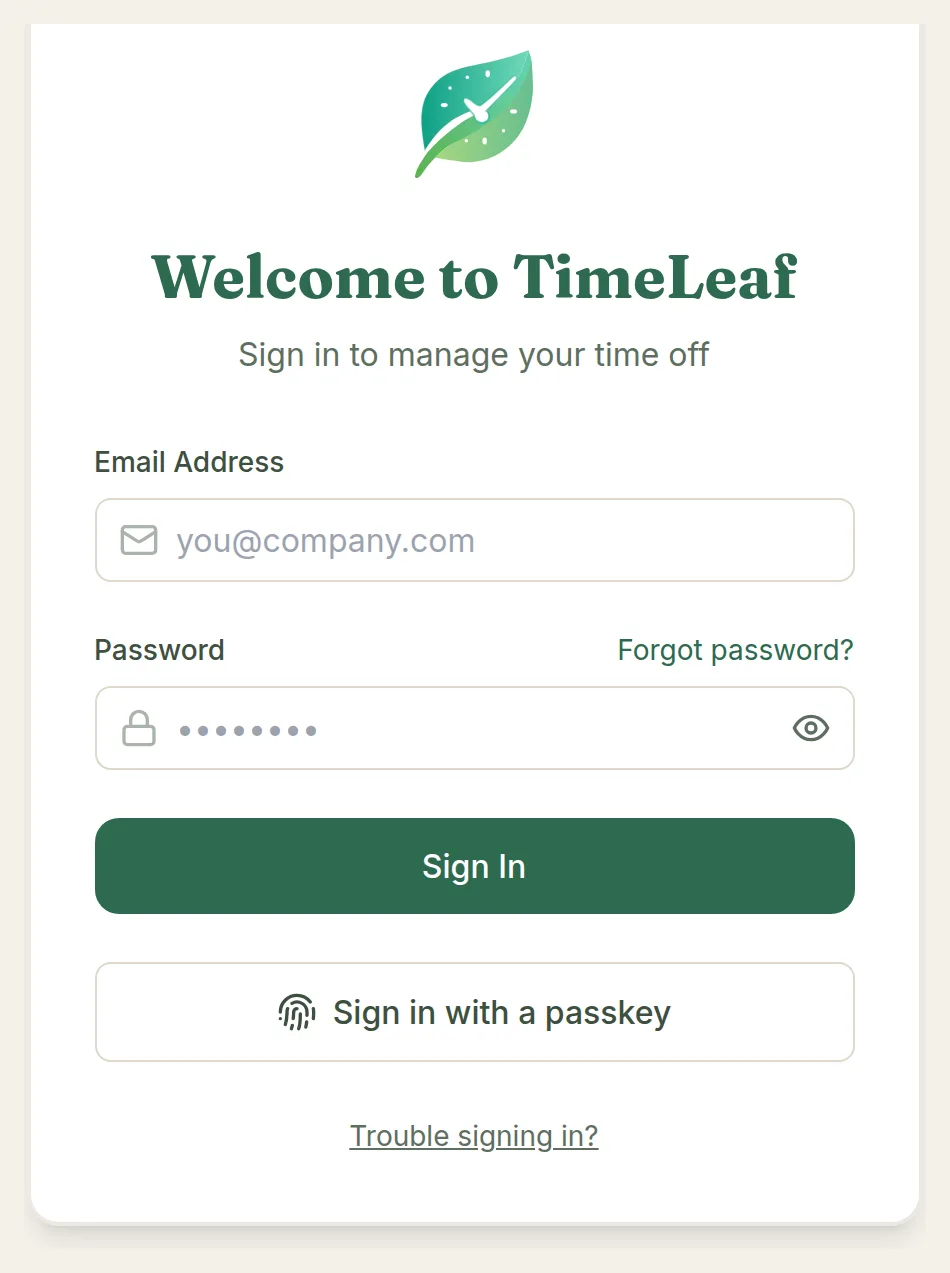
The sign-in screen offers:
- Email Address and Password, then Sign In.
- Sign in with a passkey, once you have added a passkey (see Passkeys below). Your browser may also list your passkey when you click the email field.
- Forgot password? Enter your email and choose Send Reset Link. The reset link expires in 24 hours. Check your spam folder if it doesn't arrive.
- Trouble signing in? Account recovery for when nothing else works. Enter your email, choose Send recovery code, then type the 6-digit code from the email and choose Verify and sign in. Admin and owner accounts must also enter their password here.
Signing in with SSO
If your company signs in with Microsoft or Google, the sign-in screen shows Sign in with Microsoft or Sign in with Google under Or continue with. Choose it and sign in with your work account. You don't need a TimeLeaf password.
Some companies require SSO. Then the password fields are hidden and the screen says Your company requires signing in with SSO. Use the SSO button below.
Two-factor authentication
If you turned on an authenticator app, TimeLeaf asks for the 6-digit Authenticator code after your password. Type it and choose Verify code.
Your company can require two-factor authentication for admins and owners. If you are one, TimeLeaf sends you to Set up two-factor authentication after you sign in and you can't use the rest of the app until you add an authenticator app. Signing in through your company's SSO also counts, because your identity provider handles the second step.
A tour of your dashboard
After you sign in you land on your dashboard. What you see depends on what your company uses.
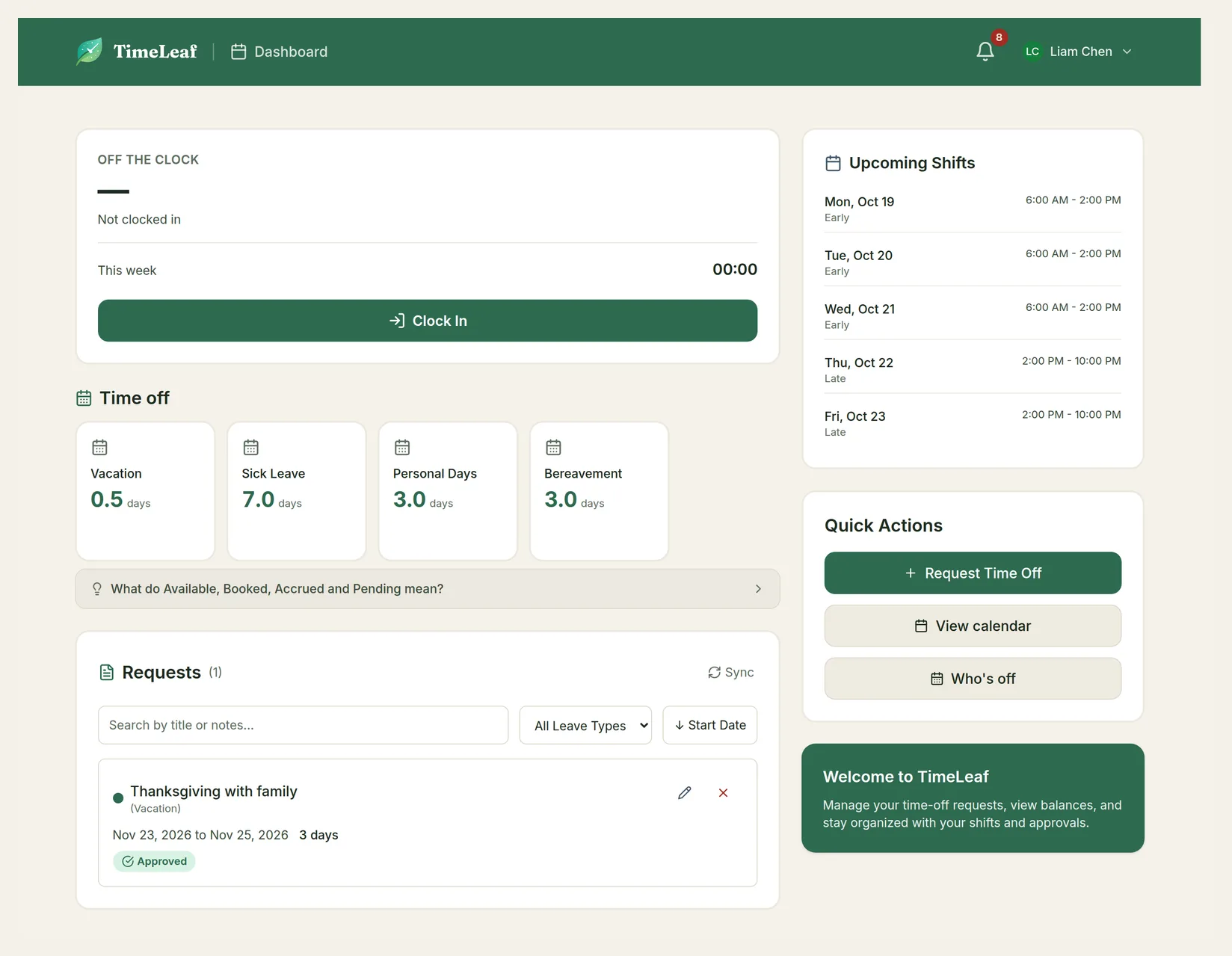
- Clock card (Professional plan and up, when your company tracks time). Shows whether you are on the clock and your hours this week, with a Clock In / Clock Out button. See Clock In & Timesheets.
- Time off. One card per leave type with what you have available. Open What do Available, Booked, Accrued and Pending mean? for a short explanation.
- Requests. Your leave requests, with search, a leave type filter and their status. See Request Time Off.
- Upcoming Shifts. Your shifts for the next two weeks, if you have any. See Your Shifts.
- Quick Actions. Request Time Off, View calendar (your own time off for the next two weeks) and Who's off (approved time off of the colleagues you can see).
Everything else is in the menu under your name, top right: Timekeeping, Reports, Notification Settings, Account Settings, Help & Support and Sign Out. Managers see extra items, covered in For Managers.
Set your language
TimeLeaf is available in English, Español and Português (Brasil). Your language applies to the app, your emails and your text messages. TimeLeaf never switches it for you based on your browser.
Open Account Settings
Open the menu under your name and choose Account Settings. This opens My Profile.
Pick a language
Under Language & Region, choose a Language, then choose Save Changes at the bottom of the page. The page reloads in your language.
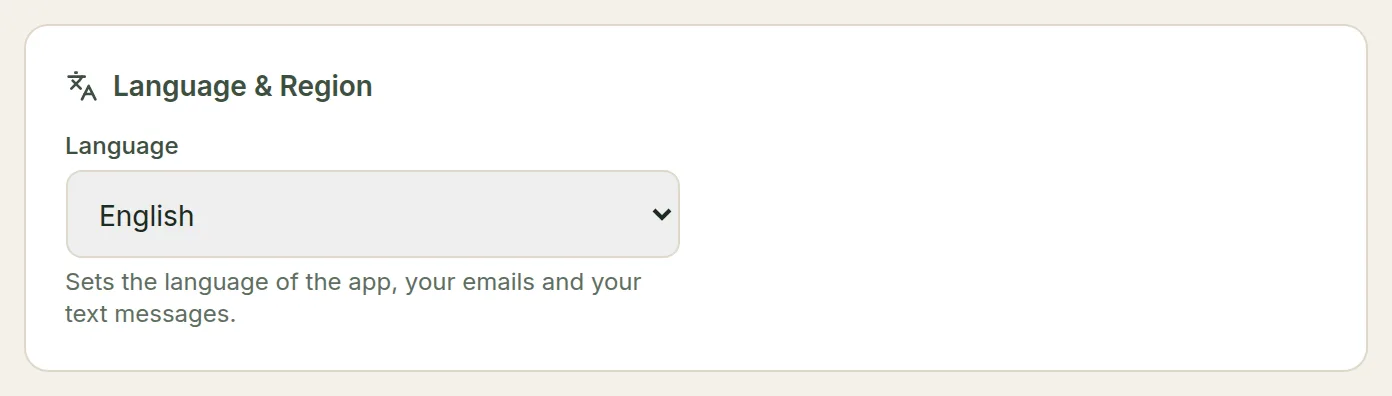
If you have never picked a language and your browser is set to Spanish or Portuguese, your dashboard asks whether you want to use TimeLeaf in that language. Yes switches everything to it. No keeps English, and the question doesn't come back.

The Appearance section on the same page sets light, dark or system theme for the device you are using.
Choose your notifications
Open the menu under your name and choose Notification Settings. Switch each channel on or off:
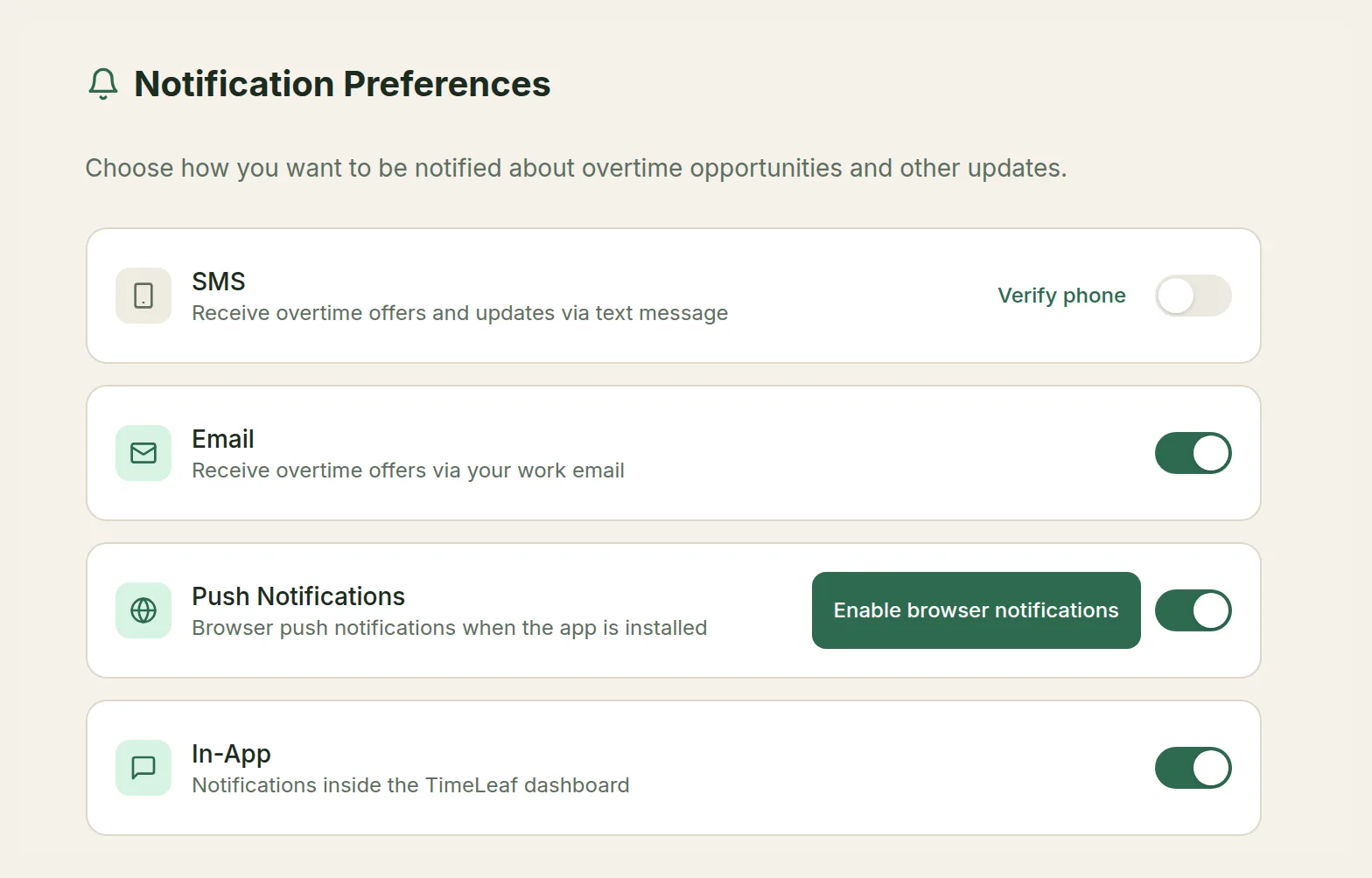
| Channel | What it does |
|---|---|
| SMS | Text messages, such as overtime offers. Choose Verify phone first: enter your number and the 6-digit code TimeLeaf texts you. |
| Emails about your leave, shifts and overtime offers. Turning it off stops them. Sign-in and password emails still arrive. | |
| Push Notifications | Notifications on your phone or computer. Choose Enable browser notifications and allow them when your browser asks. On iPhone, add the app to your home screen first (see below). |
| In-App | The bell at the top of TimeLeaf. |
You may also see Messenger (direct messages in Teams, Slack or Google Chat) and On-Call Handoff if your company uses them.
Add your time off to your calendar
On My Profile you can:
- Connect Microsoft calendar or Connect Google calendar, to add your approved time off to your own work calendar (Professional plan and up, when your admin allows it). Choose Disconnect to remove it again.
- Create a Calendar feed. Choose Create link and copy it. It's a private link you can subscribe to in Google, Apple or Outlook calendar. It shows your approved time off, and when teammates are out, never why.
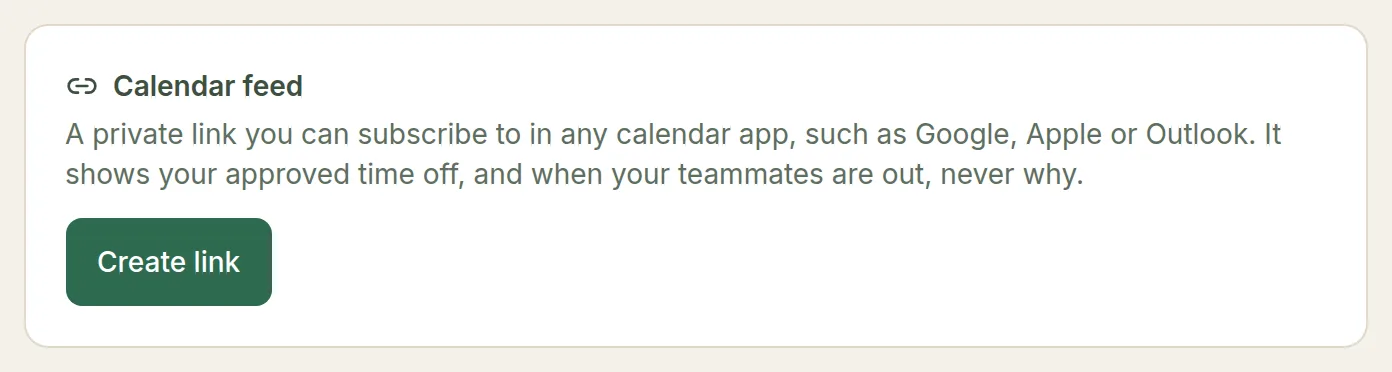
The feed link is shown only once. Anyone who has it can see your feed, so don't share it. If you lose it or think someone else has it, choose Make a new link: the old link stops working. Turn off disables it.
Passkeys and an authenticator app
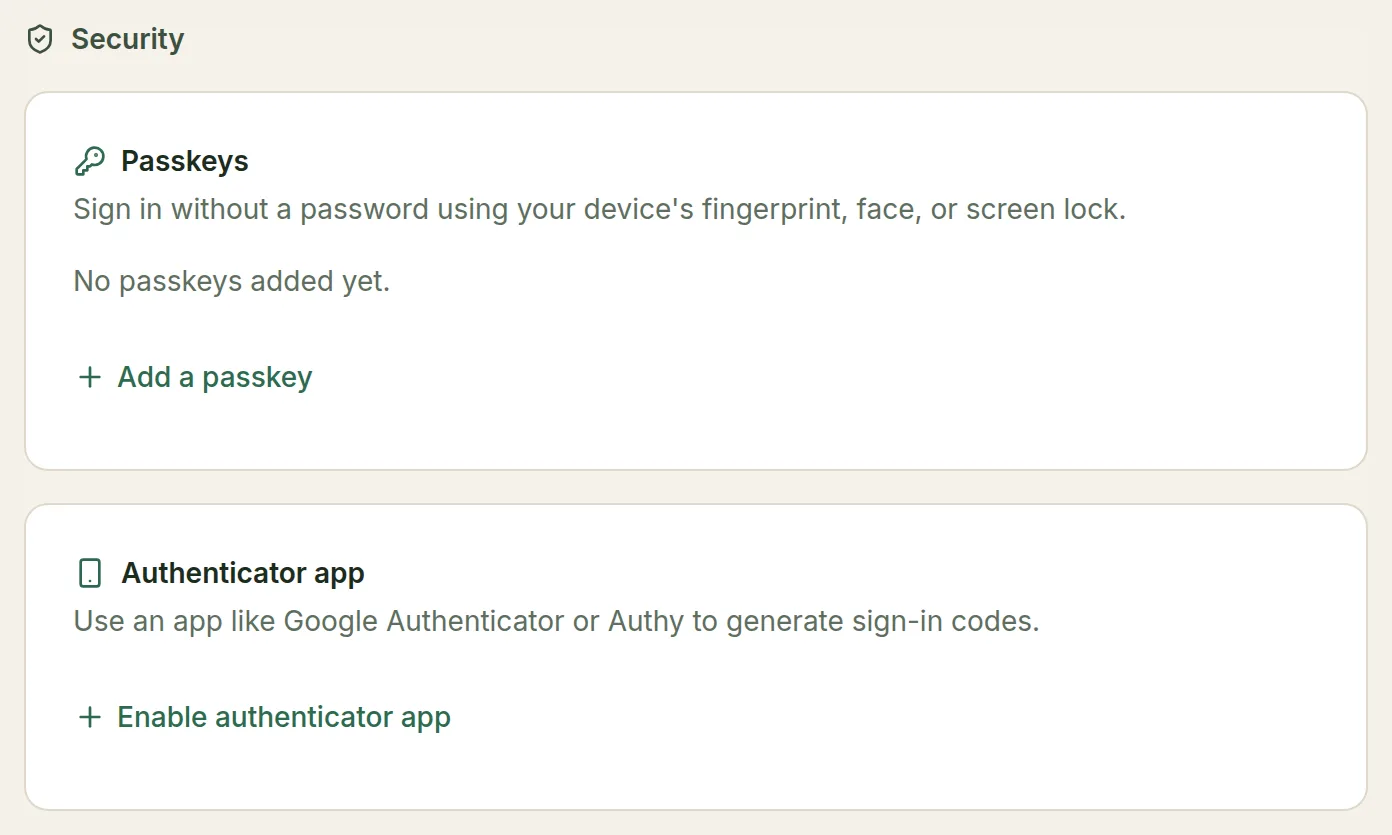
The Security section at the bottom of My Profile has two optional ways to protect your account.
Passkeys
A passkey lets you sign in with your device's fingerprint, face or screen lock instead of a password. Choose Add a passkey, follow your device's prompt, give the passkey a name (for example "My laptop") and choose Save. Then use Sign in with a passkey on the sign-in screen.
Some browsers offer to create a passkey for you after you sign in with a saved password.
Authenticator app
An authenticator app (such as Google Authenticator or Authy) adds a 6-digit code to every password sign-in.
- Choose Enable authenticator app and enter your password.
- Scan the QR code with your app.
- Save the Backup codes somewhere safe. Each one works once if you lose your phone.
- Enter the 6-digit code from the app and choose Verify and enable.
To turn it off, choose Disable and enter your password.
TimeLeaf on your phone
TimeLeaf works in your phone's browser. You can also install it like an app:
- On Android and in desktop Chrome or Edge, your dashboard shows Add this app to your home screen. Choose Install.
- On iPhone, tap the Share button in Safari, then Add to Home Screen. On iPhone this is also what turns on push notifications.
The installed app opens straight to TimeLeaf. If you tap Clock In or Clock Out with no signal, the tap is saved on your phone and sent as soon as you are back online. The time recorded is when you tapped.
Chat apps
If your company connected Microsoft Teams, Slack or Google Chat, you can check balances, request time off, clock in and out and more from a chat message. Your dashboard shows Get the bot in: with a button for each connected app. See Microsoft 365, Slack or Google Chat.