
When someone stops working for you, TimeLeaf keeps their records, frees their plan seat, and switches off their sign-in on the day you choose. This page covers furloughs and lay-offs, the Archived view, bringing someone back, and erasing personal details.
Furlough or lay off
Both actions keep every record and free the person's plan seat straight away. They differ only in the employment status they set:
| Action | Status set |
|---|---|
| Furlough | Furloughed / Inactive |
| Lay Off | Terminated |
Select the people
Go to People → Employees & Teams. On the Active list, tick the people who are leaving — one person or many. The bulk action bar appears above the table. (The bulk bar is part of the desktop layout; use a computer or a wide window.)
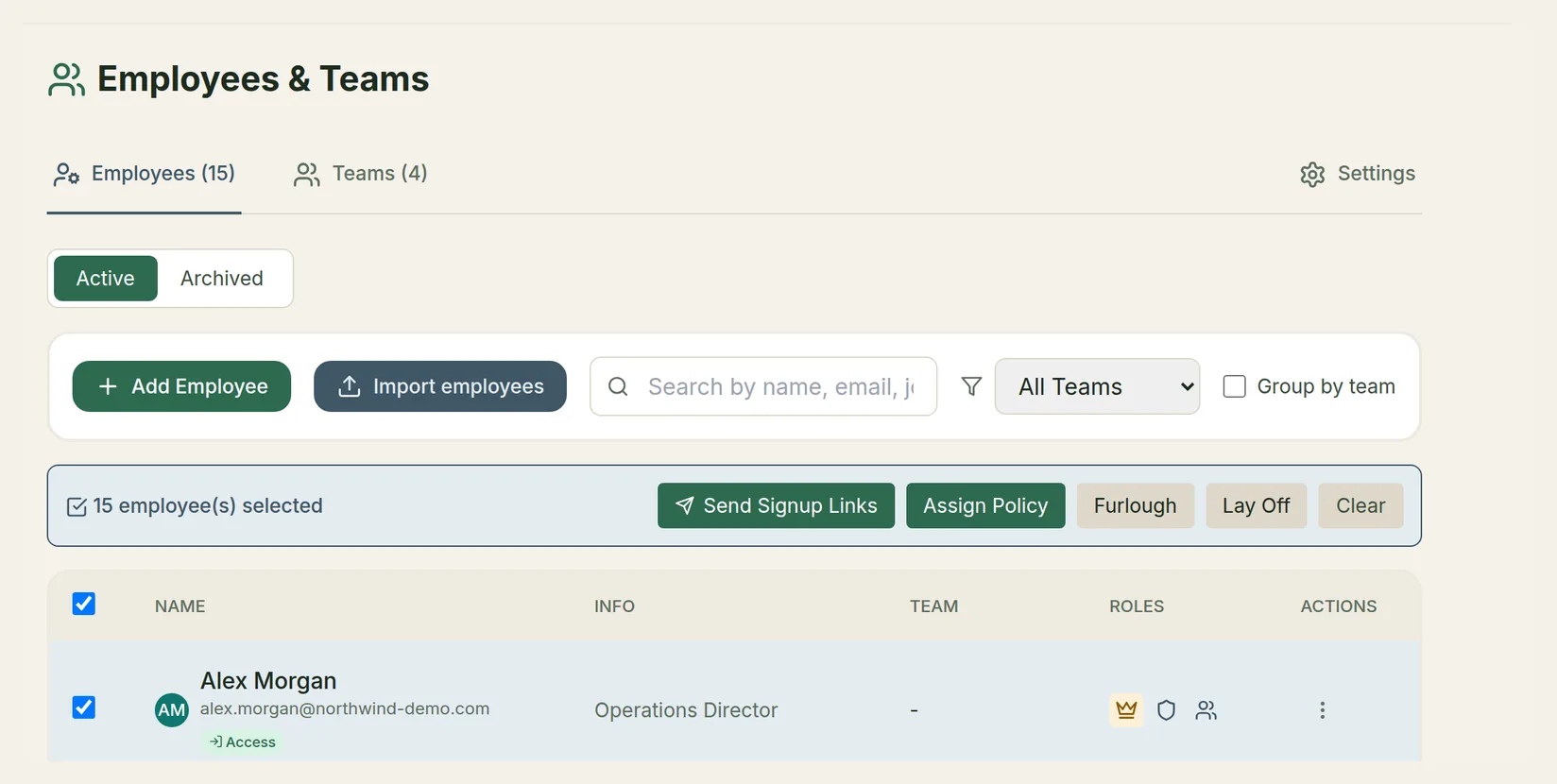
Click Furlough or Lay Off
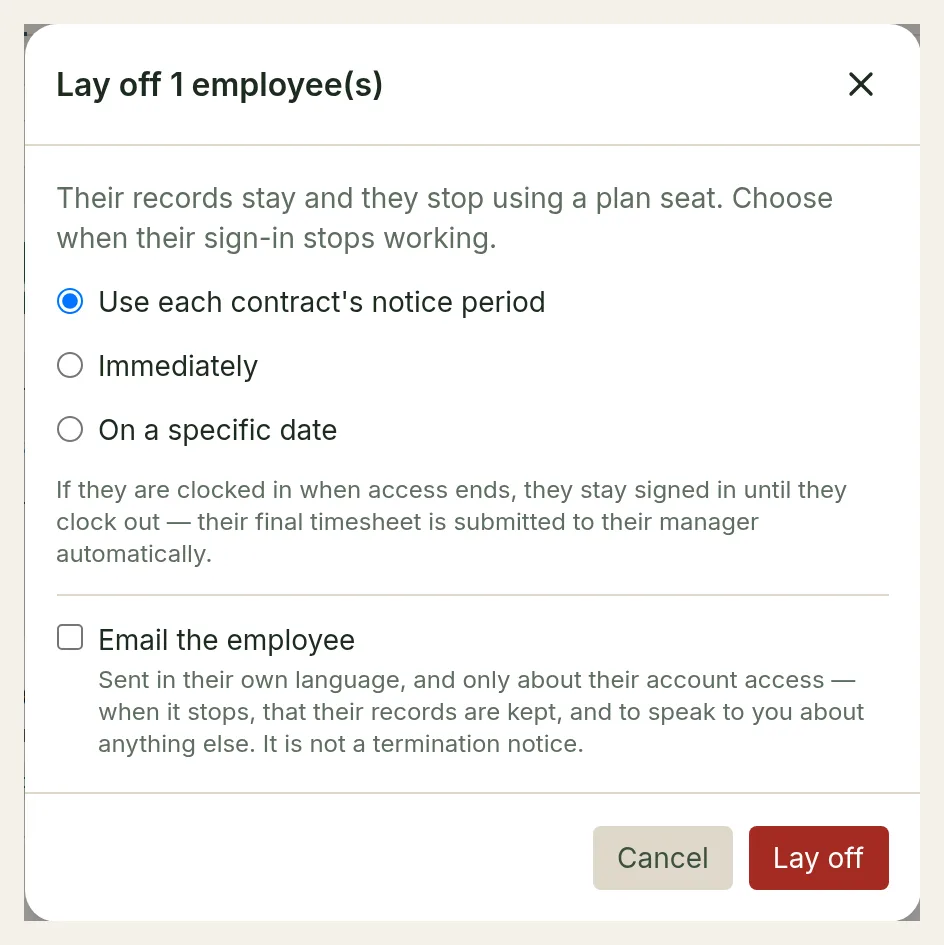
A dialog asks when their sign-in should stop working:
- Use each contract's notice period (the default) — each person keeps access until the end of the notice period on their current contract, counted from today. People are judged one by one, so two people let go together can have different last days. Someone with no current contract, or whose contract has no notice period, loses access at once.
- Immediately — access ends today.
- On a specific date — pick the last day their sign-in works.
Decide whether to email them
Email the employee is off by default, because most employers deliver this news themselves. If you tick it, each person gets an email in their own language that covers only their account access:
- when their sign-in stops,
- that their records are kept,
- that they can still clock out if they are clocked in,
- that contract signing links already emailed to them still work,
- and that they should speak to you about anything else.
It is not a termination notice, and it says nothing about pay, reasons or next steps.
Confirm
Click Furlough or Lay off. Their status changes now; their sign-in stops on the date you chose.
Changing one person by hand
You can also open a person's row menu, choose Edit, and under Employment Status set the Status, Termination Date and Access ends on (the last day their sign-in works). Left blank on a non-active status, access ends immediately. Click Save Changes.
Serving notice, then archived
After a furlough or lay-off, a person is in one of three states:
| State | What it means |
|---|---|
| Serving notice | Their access hasn't ended yet. They can sign in and work as normal. They stay on the Active list with a Serving notice until chip, and you can still edit them. They no longer use a plan seat. |
| Clocked in when access ends | They stay signed in, but can only clock out. Clocking out submits their final timesheet to their manager automatically and then signs them out for good. They can't clock in again. |
| Archived | Their access has ended. Sign-in is blocked everywhere — the app, chat apps, API tokens and their calendar feed link — and they move to the Archived view. |
TimeLeaf checks for ended access every night (on the company's clock). The day you choose is the last day their sign-in works.
Seats are freed on day one. The seat follows the status, so it's released as soon as you furlough or lay someone off — even while they serve their notice. You can hire their replacement against that seat straight away.
Using directory sync? People removed or disabled in Microsoft 365 or Google Workspace are archived by the daily sync for you, and listed for review at the top of the Employees tab. See Directory Sync.
The Archived view
On People → Employees & Teams, switch from Active to Archived. Each archived person shows their name, job, status and the date they left, with these actions:
- Records — their contracts (when Contracts is on your plan), position and pay history, and timesheets, read-only.
- Restore — bring them back.
- Erase — erase their personal details.
Restoring someone
Click Restore on their row and confirm. They become active again, take a plan seat, and can sign in with their existing sign-in details. Their history, including the status change, is kept.
Restore needs a free plan seat. If your plan is full, free a seat or upgrade under Settings → Billing first.
Erasing personal details
When you no longer need someone's personal information — or they ask you to delete it — erase it. You can only erase people who are archived.
Remove them from your directory first
If you use directory sync, delete or disable the person in Microsoft 365 or Google Workspace before you erase them. Otherwise the next sync adds them back as a new employee.
Erase
In the Archived view, click Erase on their row, or tick several people and click Erase personal details. Read the confirmation — it lists exactly what is erased and what is kept — and confirm.
Erased for good:
- email and phone numbers, home address, emergency contacts
- date of birth, gender, marital status, nationality and photo
- bank and tax details
- sign-in: password, SSO link, sessions and tokens
- sick-note files and the free-text notes on leave requests, site check-ins and time entries
- notifications, calendar sync, shift qualifications and work restrictions
Kept, still naming the person — because employers must keep employment and payroll records:
- name, employee number, job title, team and employment dates
- employment contracts (with their attachments and signed copies)
- position and pay history
- timesheets, their approvals and the hours on them
- leave requests (dates, type, status and hours), their approvals and leave balances
- banked overtime and every payout
- the invoice lines that bill their work
- roster shifts, site visits (with their location and photos) and on-call records
Any leave request of theirs still waiting for a decision is cancelled, so approvers aren't left with requests nobody can act on. Past payroll exports and invoices still show their name.
Erasing can't be undone. An erased person stays in the Archived view marked Erased, and can never be restored. If they come back, add them as a new employee.
Employees can also ask to delete their own data. See GDPR & Compliance.