
When someone on your team asks for leave, TimeLeaf sends the request to you. You can decide it from the notification bell, an email, a chat app or the Team Reports page. This guide covers each, plus recording leave for your team.
Where requests reach you
The notification bell
The bell at the top of TimeLeaf shows Approval Required for each request waiting on you, with Approve and Reject buttons.
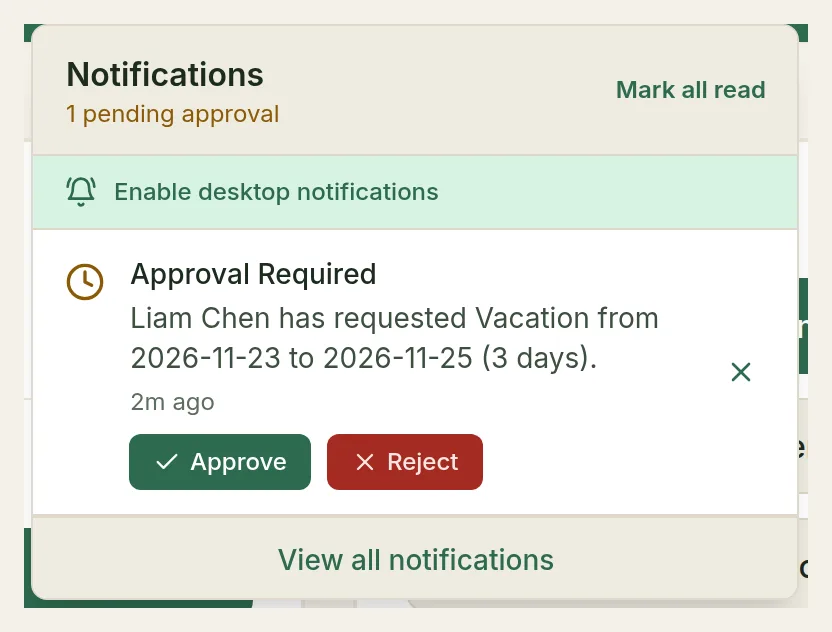
You get an email titled Leave request from name**:** leave type, with Approve and Decline buttons and a View request link.
- Opening the email or the link never decides anything on its own.
- If you aren't signed in, the sign-in page names the request you're about to decide. Sign in, and the decision is applied.
- If you're already signed in, TimeLeaf asks you to confirm with Confirm approve or Confirm decline.
- If the request was already decided, or has moved on to someone else, TimeLeaf says so and changes nothing.
Chat apps
If your company connected Microsoft Teams, Slack or Google Chat, approval requests arrive as messages you can approve or decline without leaving the chat. See Microsoft 365, Slack or Google Chat.
Team Reports › To decide
Open the menu under your name and choose Team Reports. To decide at the top lists every request waiting on you, including ones from outside your own team (for example, when you are someone's delegate).
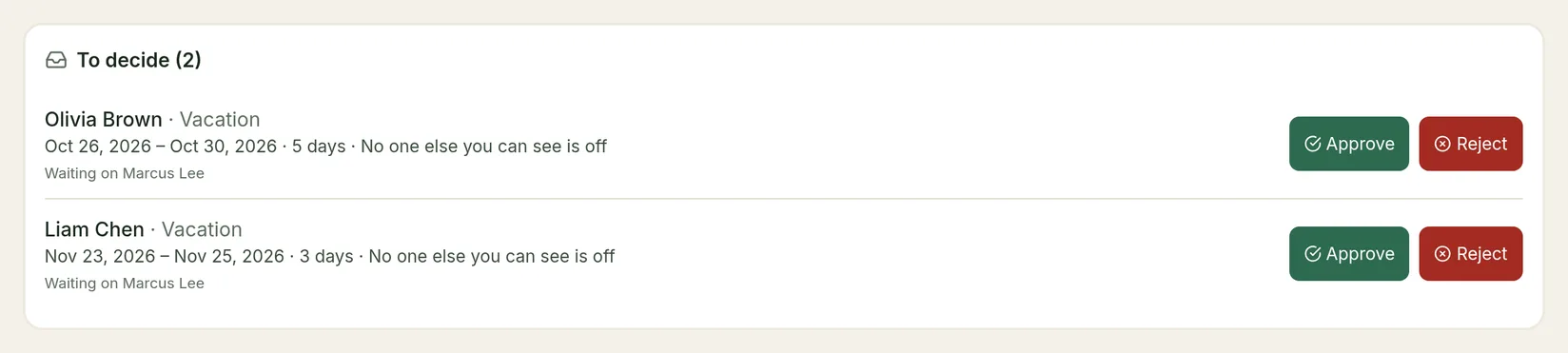
Each request shows:
- who it is from, the leave type, the dates and how many days or hours;
- how many others are off then: No one else you can see is off, or for example 2 others you can see off. It only counts people whose leave you're allowed to see, so it isn't a count of the whole company;
- Waiting on and the name of the person deciding it, and Step 1 of 2 (for example) if it needs more than one approval;
- Short notice if it was submitted with less notice than the leave type asks for;
- a link to any attached file, such as a sick note.
Choose Approve or Reject. The employee is told straight away, in the app and by email. A rejected request shows to the employee as Denied, and the days go back to their balance.
Requests whose dates have passed. A request nobody decided before it started shows Date passed. You can still approve or reject it. If the employee didn't actually work those days and shouldn't be paid, choose Unpaid absence instead: it is recorded as approved unpaid leave of the type you pick. An admin has to create an unpaid leave type first.
Requests that need more than one approval
Your company can set up approval workflows (Professional plan and up), where some leave needs two or more people to approve. If you're one step, you decide that step: approving moves the request on to the next person, and the employee is told it was approved at one step and needs another approval. The request stays Pending until the final step approves it. Rejecting at any step ends it.
Admins can decide any step. See Approval Workflows.
The Team Time Off Reports page
Below To decide, Team Reports shows your direct reports' time off.
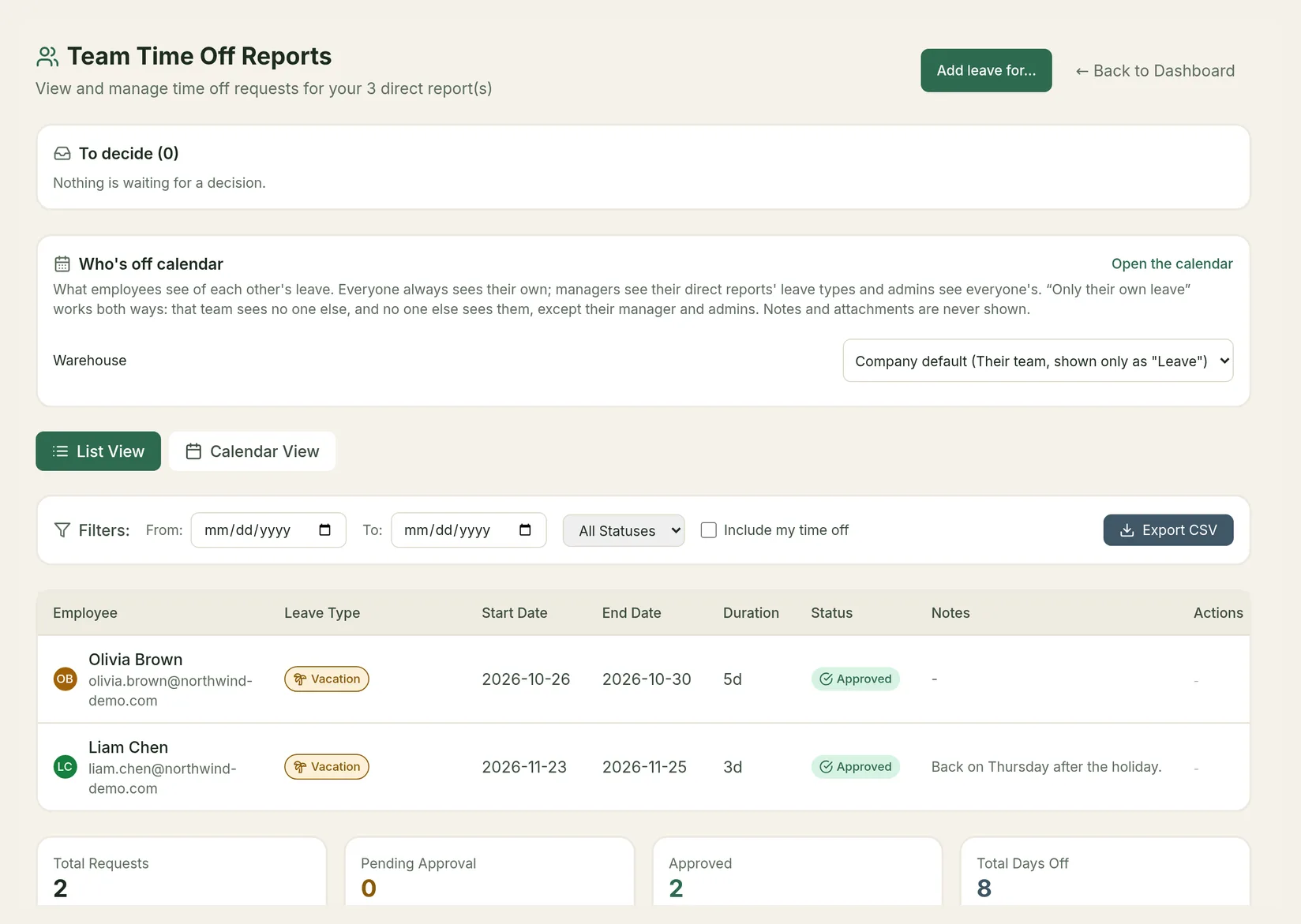
- List View and Calendar View switch between a table and a month calendar.
- Filters: a From and To date, a status, and Include my time off to add your own requests.
- Export CSV downloads the list as it's filtered.
- The totals at the bottom show Total Requests, Pending Approval, Approved and Total Days Off.
Pending requests in the list have Approve and Reject buttons too.
What your team sees on the Who's off calendar
The Who's off calendar section sets what employees see of each other's leave, for each team you manage. Choose one of:
| Option | What the team sees |
|---|---|
| Company default (…) | Whatever your admin set for the company. The current company setting is shown in brackets. |
| Only their own leave | Nobody else's leave. It works both ways: nobody else sees this team's leave either, except you and admins. |
| Their team, shown only as "Leave" | Who in their team is off, but not the type of leave. |
| Their team, with the leave type | Who in their team is off, and the type of leave. |
| Everyone, shown only as "Leave" | Who in the whole company is off, but not the type of leave. |
| Everyone, with the leave type | Only an admin can choose this. |
Everyone always sees their own leave. You always see your direct reports' leave types, and admins see everyone's. Notes and attachments are never shown. Open the calendar shows the calendar itself.
Add leave for someone on your team
Use this when someone phones in sick, or can't use TimeLeaf themselves.
Choose Add leave for…
On Team Reports, choose Add leave for… at the top right, then choose the Employee. You can record leave for the people whose requests you approve.
Choose how to record it
Under How to record it:
- Submit for approval sends it to the usual approver, as if the employee had submitted it.
- Record as approved approves it yourself straight away. If an approval workflow puts the first step with someone else, this is refused: submit it instead.
Fill in the leave
The rest of the form is the employee's own Request Time Off form: leave type (with their balance), dates, half day, title, notes and an attachment. Then choose Submit for approval or Record as approved.
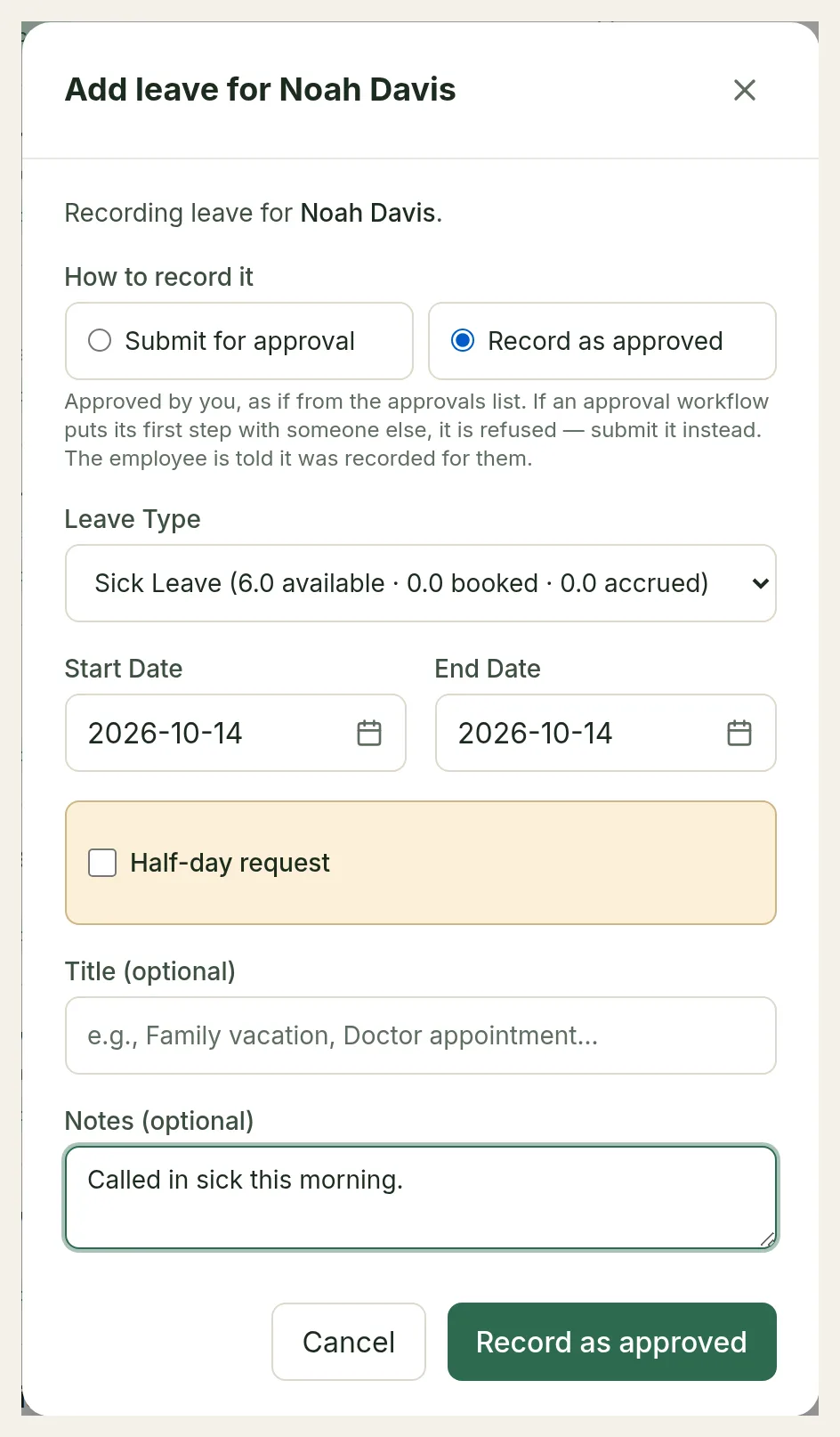
The employee is told the leave was recorded for them, and by whom. The same rules apply as when they book it themselves: balance, overlapping leave, minimum notice and blackout periods. Only an admin can override minimum notice or a blackout.
Adjust a report's balance
If your admin has turned on Managers Can Adjust Their Reports' Balances, you can correct the leave balance of your direct reports.
Open Team overview
On your dashboard, choose Team overview under Quick Actions. It lists each report with their balances and pending requests.
Open Leave balances
Under the person, open Leave balances. It shows each policy's available balance and the adjustments already made.
Make the adjustment
Choose the Policy and under Change pick Add or deduct or Set balance to. Enter the Amount (negative to deduct) and the date it is Effective from, or the New balance. Add a Reason. Choose Adjust balance or Set balance.
Every adjustment is recorded with your name and the reason. You can't adjust your own balance.