
If your company tracks time in TimeLeaf (Professional plan and up), you record your hours by clocking in and out, or by typing them in. At the end of each period you submit your timesheet to your manager.
Set your time zone
The first time you open Timekeeping (from the menu under your name), TimeLeaf asks for your time zone so your clock-in and clock-out times are recorded correctly. It suggests the zone your device reports.
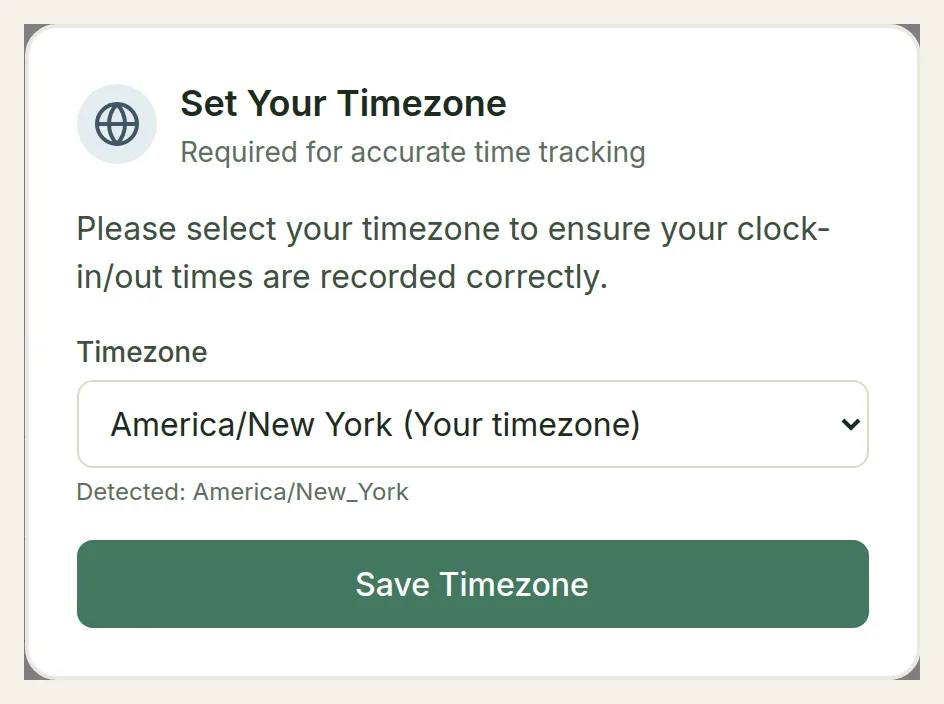
Check the Timezone, then choose Save Timezone. Your zone is shown at the top of the Timekeeping page. If you travel and your device's zone no longer matches, the page tells you and offers Update.
Clock in and out
You can clock in from two places:
- the Clock In button on your dashboard, or
- the Clock In button at the top of Timekeeping.
While you're on the clock, the button changes to Clock Out and shows when you started. Choose it when you finish. You can clock in and out more than once a day; each stretch is recorded separately.
You can also clock in and out from Microsoft Teams, Slack or Google Chat if your company connected one.
Location
Next to the button, TimeLeaf shows whether it can record your location: Location on, Location off, or No GPS. Your browser asks for permission the first time.
If your company requires a location and your device can't find one:
- TimeLeaf asks you to try again, and offers a link to your device's settings. You get three tries.
- After that, it clocks you in anyway with no location and flags the entry for your manager. No time is lost.
If TimeLeaf can only get an approximate location, you're clocked in normally and told that your site couldn't be confirmed. Some companies turn off the "clock in anyway" step. In that case, ask your manager to record the time for you.
No signal? If you installed TimeLeaf on your phone, a tap with no signal is saved on the phone and sent as soon as you're back online. The time recorded is the moment you tapped.
Forgot to clock out?
If you're still clocked in 15 minutes after your scheduled shift ends, TimeLeaf asks Still working? on your dashboard and Timekeeping page, and in your chat app if you use one:
- Yes, I'm still working keeps the clock running. Your manager is told you worked past your shift.
- No — clock me out at … clocks you out at your shift's scheduled end.
If you have no scheduled shift, TimeLeaf asks after you have been clocked in for a long time (12 hours unless your company set a different limit).
If you don't answer, TimeLeaf eventually closes the entry with a suggested end time and marks it Needs confirming. Open your timesheet, check the time, and choose Confirm, or edit the entry to correct it.
If you clock out after an unusually long shift, TimeLeaf asks whether the hours are right. Yes, keep it keeps them; No, correct to … shortens the entry to the hours it suggests. Either way it's flagged for your manager.
Your timesheet
Timekeeping shows one timesheet period at a time, with a row for each day. A period is usually Monday to Sunday, but your company can set a longer one, such as two weeks or a month. Use the arrows to move between periods. Current period marks the one you're in.
Each day shows Start, End, Break, Hours and Notes. Holidays are marked on their day. Entries you typed in are labelled Manual; clocked entries are labelled Clock.
Add hours by hand
Choose + on the day
On a day with no entries, choose + in the Actions column. To add another stretch to a day that already has entries, open the day and choose Add session. On a phone, choose New.
Enter the times
Enter the Start and End times. TimeLeaf works out the Hours, or you can type the hours yourself. Add notes if you like.
If you were on call, tick On-call / incident work (shown when your company uses on-call scheduling).
Save
Choose the check mark to save the entry, or the cross to discard it.
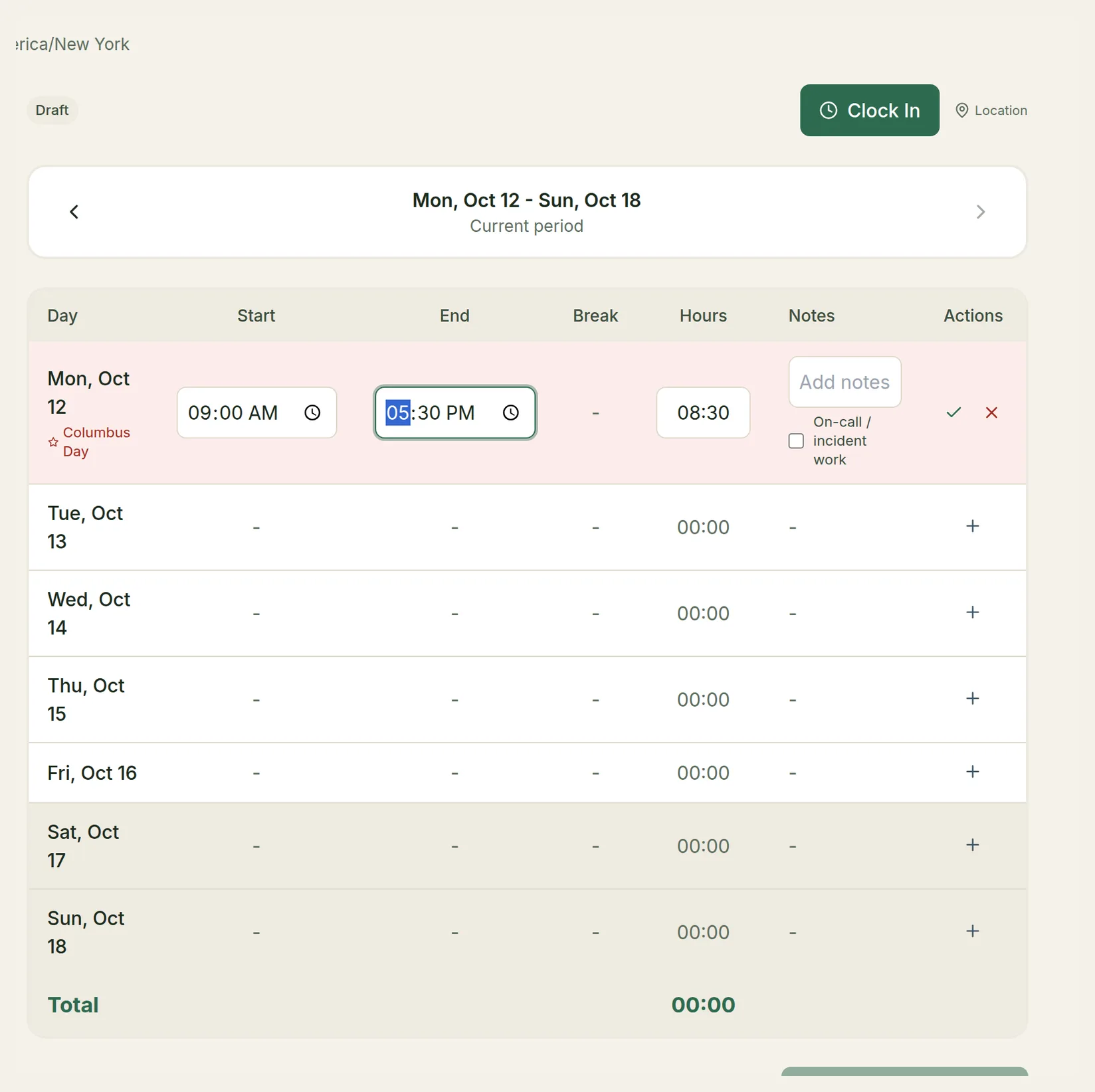
To correct an entry, choose the pencil icon on it. You can't edit an entry while you're still clocked in on it: clock out first, then correct the times.
Submit for approval
When the period is complete, choose Submit for Approval at the bottom of the timesheet. Your manager is notified.
- You can't submit an empty timesheet.
- You can't submit while you're still clocked in. Clock out first, or that shift would be submitted as 0 hours.
- Once submitted, the timesheet is locked. You can't add or change entries until your manager decides.
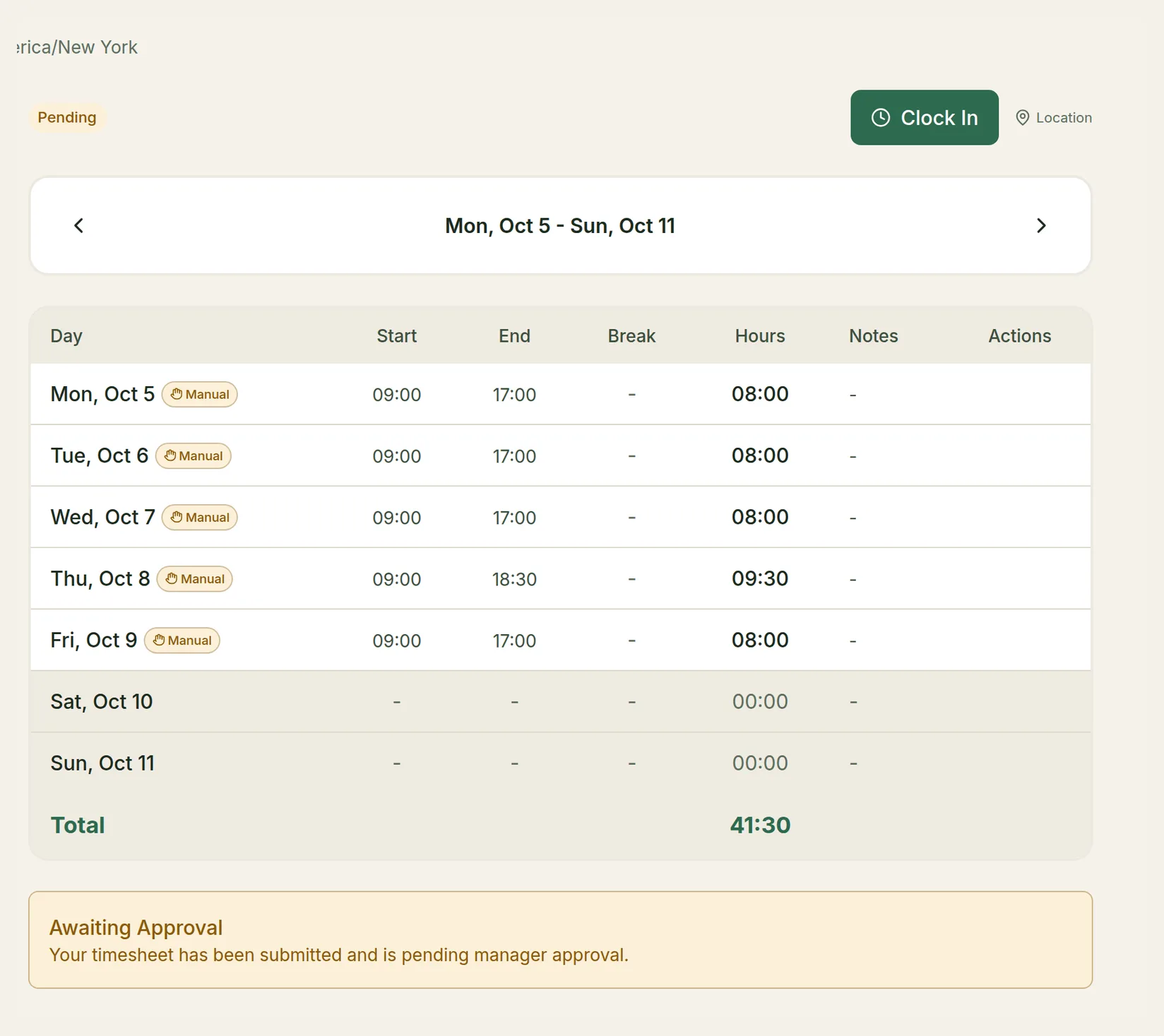
Timesheet statuses
| Status | What it means |
|---|---|
| Draft | You're still filling it in. |
| Pending | Submitted. The page shows Awaiting Approval. |
| Approved | Your manager approved it. The page shows the date it was approved. |
| Rejected | Your manager sent it back. The page shows Changes Requested. |
If your timesheet is sent back
You get a Timesheet Rejected notification, with your manager's reason if they gave one. The timesheet opens for editing again. Make your corrections and choose Resubmit for Approval.
If you clock out after submitting
If you clock out after the period was already submitted, your end time is saved but the submitted hours are left as they were. The entry is flagged so your manager can correct it.
Your time bank
If your company banks overtime as time off (Professional plan and up, switched on by your admin), approved overtime is added to your time bank. Your dashboard shows your Time bank balance, and Time Bank at the top of Timekeeping opens the full view: your Time Bank Balance, what was Accrued, Used, Adjusted and Expired, and a Transaction History that shows when banked hours expire.